Guides › Barcode scanning
Barcode scanning and settings
Updated 6 October 2026 · Quickey 1.10 (build 16)
The Barcode page is the full-screen scanner. Its settings decide exactly what gets typed after every scan, on the phone or on a connected PC.
On this page
The Barcode pageBatch count, Find items, Pick codesWhat gets typedEnter, Tab and other keysBarcode typesScanner behaviorExamplesThe Barcode page
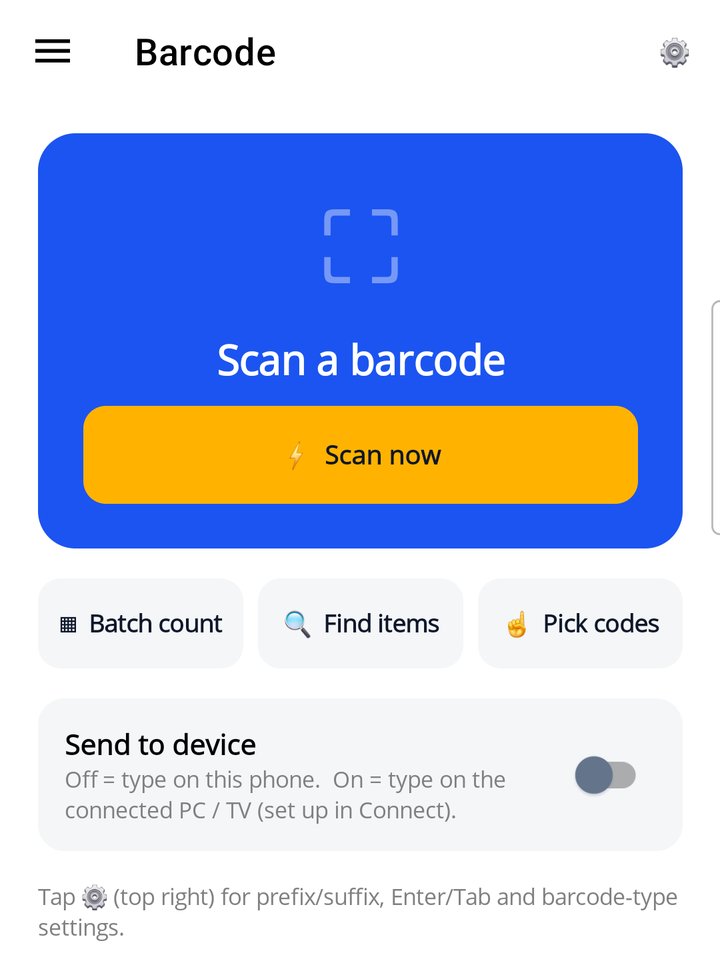
Open ☰ › Barcode. The page has three parts:
- Scan now opens the camera. Point at a code; it reads, beeps and shows the value under LAST SCAN. Auto-zoom and a second decoder help with far or wrinkled labels.
- Send to device: off means the scan is typed on this phone (through the Quickey keyboard). On means it is typed on the PC or TV you paired in Connect.
- ⚙️ (top right) opens Barcode Settings, described below.
The same settings apply wherever you scan from: this page, the keyboard's Scan key, and the floating button.
Batch count, Find items, Pick codes Business
Under Scan now are three buttons for reading many barcodes at once:
- ▦ Batch count: count many items in one go. Type how many you expect and the scan finishes by itself at that number, or leave it empty and tap Done when you have them all. Move slowly over the shelf or boxes; each code is counted once.
- 🔍 Find items: type or paste the codes you are looking for (commas or spaces between them). Point at a shelf; the items you are looking for get a green box.
- ☝ Pick codes: point at several codes and tap the ones you want. Tap a green code again to drop it. Tap Done.
The result shows on the Barcode page as a numbered list with photos. Copy, Share and Send to PC send the whole list. What goes before, between and after the codes is set in Barcode Settings › Batch output.
These three buttons are part of Quickey Business. Business credit from a video on the Your Plan page also works. Without either, a tap opens a short message with a link to the plans. See Plans.
What gets typed: prefix and suffix
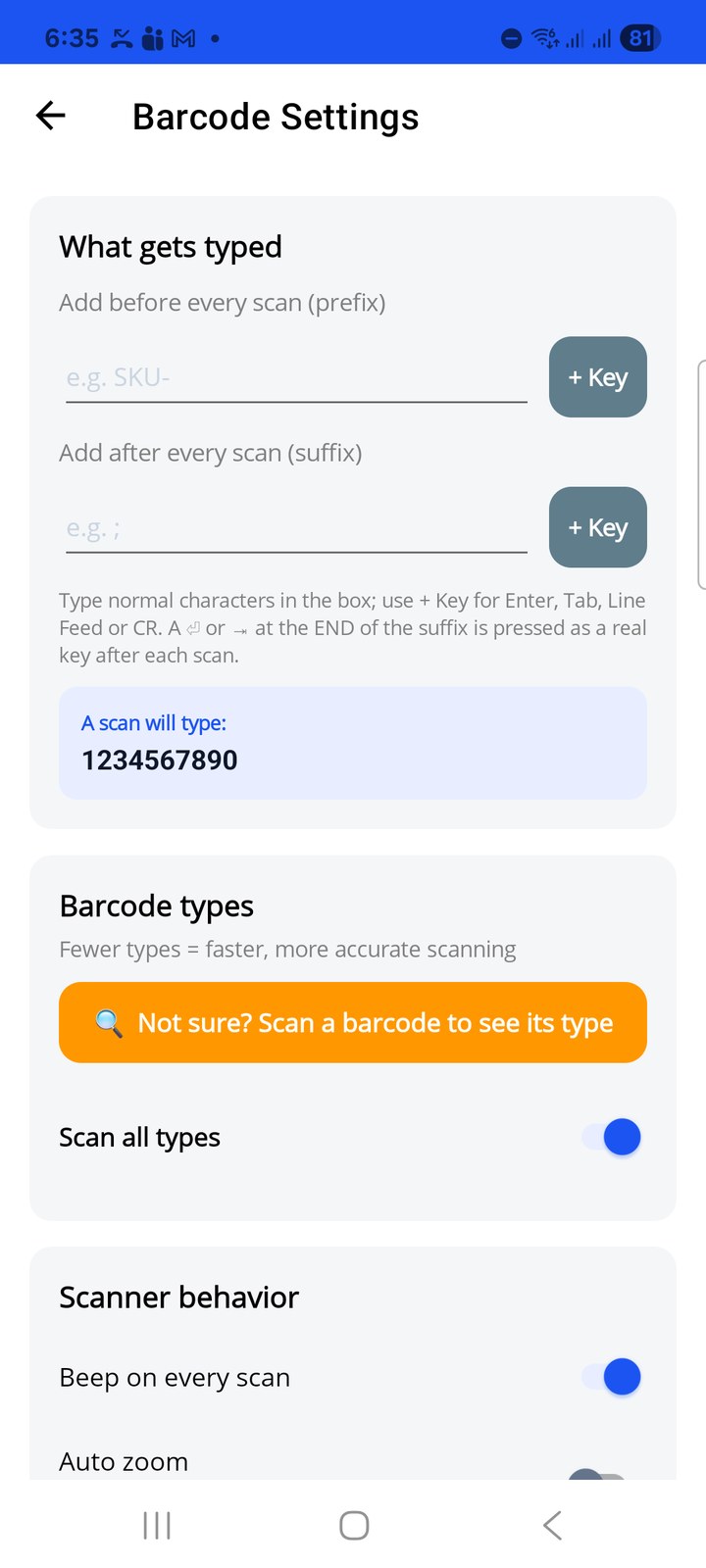
Every scan is typed as prefix + code + suffix. Both boxes are empty by default.
- Add before every scan (prefix): text typed before the code. Example: SKU- turns 1234567890 into SKU-1234567890.
- Add after every scan (suffix): text typed after the code. Example: ; for a CSV-style list, or a control key (next section).
The line A scan will type: previews the result with a sample code as you edit. Type ordinary characters directly into the boxes; use + Key for keys you cannot type.
Enter, Tab and other keys
Tap + Key next to a box to insert a control key: ⏎ Enter, ⇥ Tab, ␊ LF (line feed) or ␍ CR (carriage return).
- A ⏎ Enter or ⇥ Tab at the very end of the suffix is pressed as a real key. Enter sends a chat message or submits a form; Tab moves to the next field or cell.
- An Enter or Tab in the middle of the text types a newline or a tab character instead.
- LF and CR are always typed as characters. Some label printers and ERP fields expect them.
Most people set the suffix to just ⏎ Enter: each scan lands on its own line, and in a spreadsheet the cursor moves down one row.
Barcode types
Scan all types is on by default and reads everything. Switching it off shows a list of types where you tick only the ones you use. Fewer types means faster and more accurate scanning, because the decoder does not try to read a QR code as an EAN.
| Type | Typical use |
|---|---|
| QR code | Payment and link QR codes, session QR |
| EAN-13 / EAN-8 | Retail products (India and most of the world) |
| UPC-A / UPC-E | Retail products (US) |
| Code 128 | Logistics and courier labels |
| Code 39 / Code 93 | Industrial and asset labels |
| DataMatrix | Small square codes on electronics and medicines |
| PDF417 | IDs and documents |
| Aztec | Tickets and boarding passes |
| ITF | Carton codes |
Not sure which type your labels are? Tap 🔍 Not sure? Scan a barcode to see its type, scan one label, and the app names the type so you can tick it.
Scanner behavior
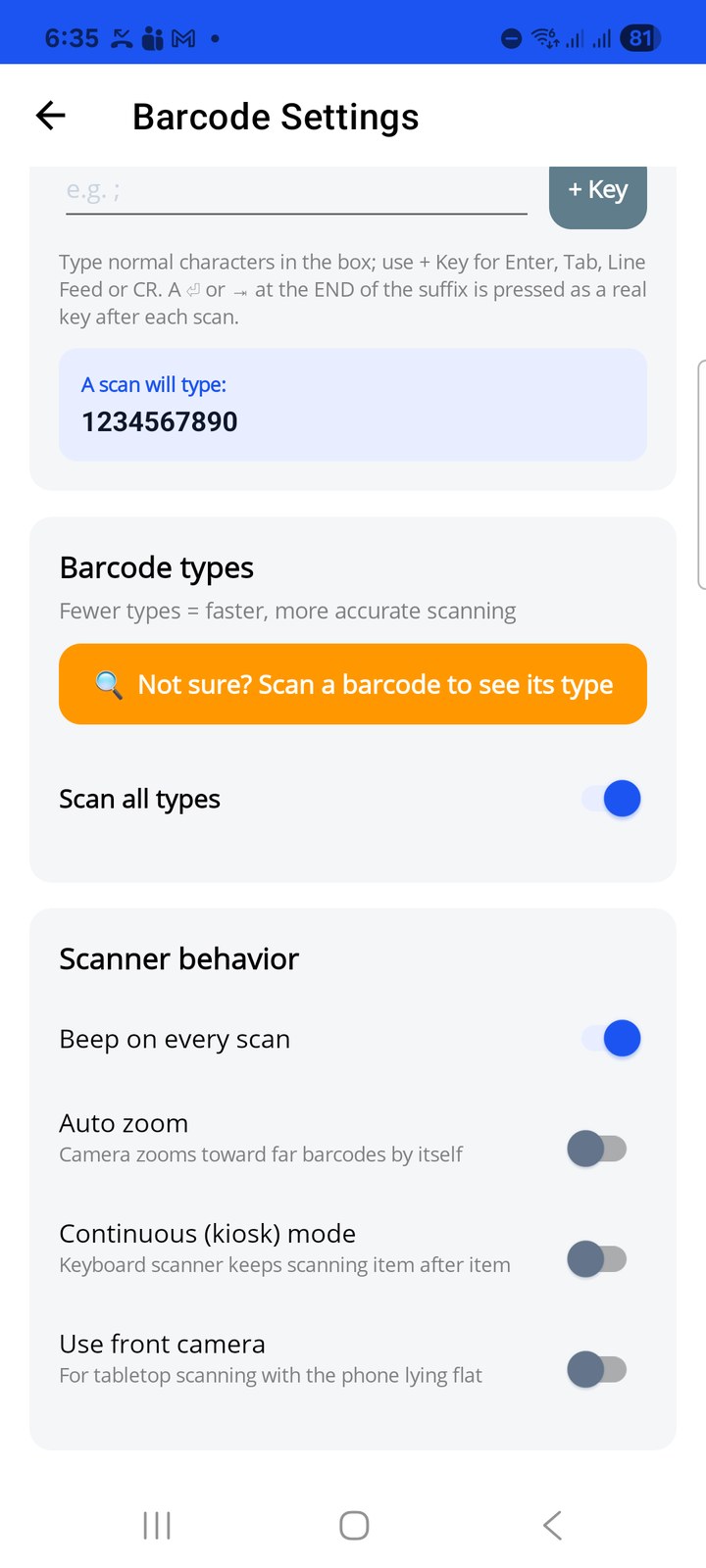
- Beep on every scan (on by default): a short beep confirms each read. Useful when you are not looking at the screen.
- Auto zoom: the camera zooms toward far barcodes by itself. Turn on for shelf scanning from a distance; leave off for close-up scanning.
- Continuous (kiosk) mode: the keyboard scanner keeps scanning item after item without closing. Combine with an Enter suffix to fill a list hands-free. Close the camera window to stop.
- Use front camera: for tabletop scanning with the phone lying flat on its back, so items are held over the screen.
Examples
| Goal | Prefix | Suffix |
|---|---|---|
| One code per row in Google Sheets or Excel | (empty) | ⏎ Enter |
| Send each code as a WhatsApp message | (empty) | ⏎ Enter |
| Fill code, then jump to the quantity field | (empty) | ⇥ Tab |
| Comma-separated list in one line | (empty) | , |
| Codes prefixed for an ERP import | SKU- | ⏎ Enter |
OCR has its own prefix and suffix. Set them in OCR Settings.