Guides › Floating button
Floating button
Updated 6 October 2026 · Quickey 1.10 (build 16)
The floating button is a small Quickey bubble that stays on top of every app. Tap it to scan, read text, or open the catalog, even in apps where you cannot switch the keyboard.
Turn it on
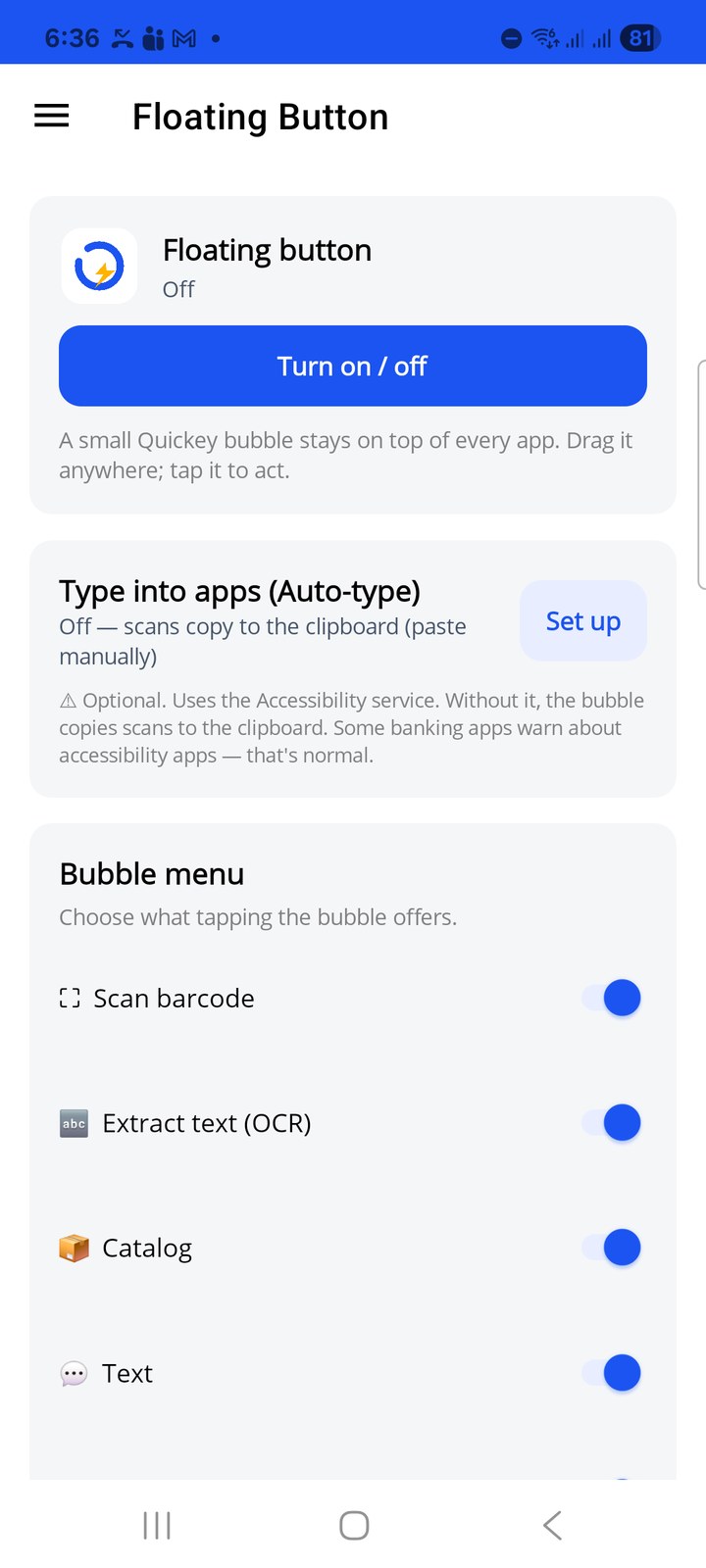
- Open ☰ › Floating Button and tap Turn on / off.
- Android asks for the Display over other apps permission. Allow it for Quickey and come back.
- The bubble appears. Drag it anywhere on the screen; tap it to act.
Tap Turn on / off again to hide it.
Auto-type (optional)
Without Auto-type, a scan from the bubble is copied to the clipboard; you paste it where you need it. With Type into apps (Auto-type) set up, the scan is typed straight into the app underneath.
Auto-type uses the Android Accessibility service. Tap Set up, read the disclosure and tap Enable anyway, then switch on Quickey in the Accessibility settings that open. The same button turns it off later. Some banking apps show a warning when any accessibility service is active; that is normal and you can keep using them.
How Quickey uses the service is described on the Accessibility use page. If you only need scans in chats and sheets, the keyboard does the same job with no accessibility service at all.
Bubble menu
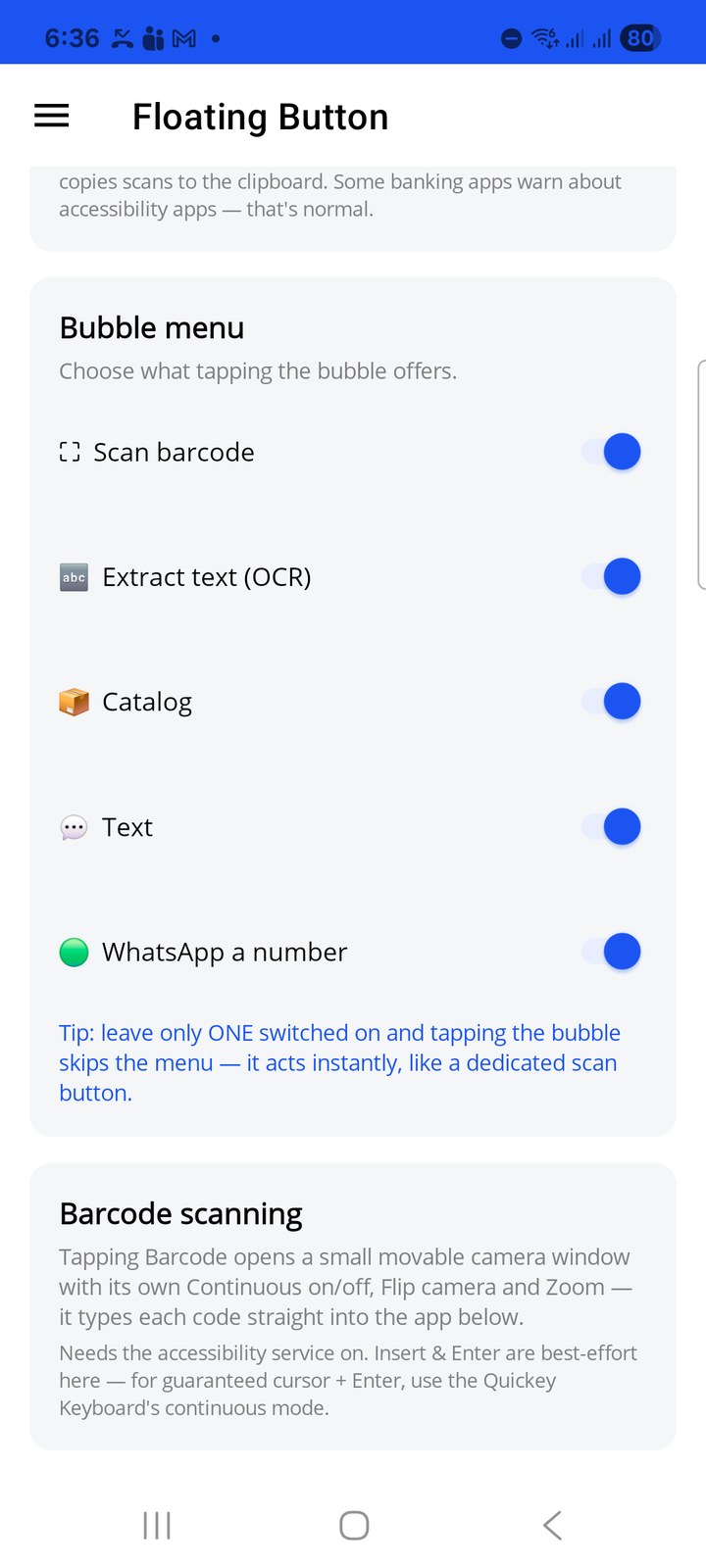
Choose what tapping the bubble offers: Scan barcode, Extract text (OCR), Catalog, Text and WhatsApp a number. Every switch that is on appears as a menu item when you tap the bubble.
Catalog and Text from the bubble show a small list; picking an item copies it and shows Copied, paste it anywhere.
Tip: leave only one switched on and tapping the bubble skips the menu. It acts instantly, like a dedicated scan button.
Scanning from the bubble
Tapping Scan barcode opens a small movable camera window with its own Continuous on/off, Flip camera and Zoom. Each code is typed straight into the app below (Auto-type on) or copied (Auto-type off). Your barcode prefix and suffix apply.
Insert and Enter from the bubble are best-effort, because the app underneath decides how it handles them. For guaranteed cursor placement and a real Enter key, use the Quickey keyboard's continuous mode instead.