Guides › WhatsApp a number
WhatsApp a number without saving it
Updated 6 October 2026 · Quickey 1.10 (build 16)
Copy or select a phone number anywhere and Quickey opens a WhatsApp chat with it. No contact is saved. This feature is free on every plan and works with WhatsApp and WhatsApp Business.
The WhatsApp page
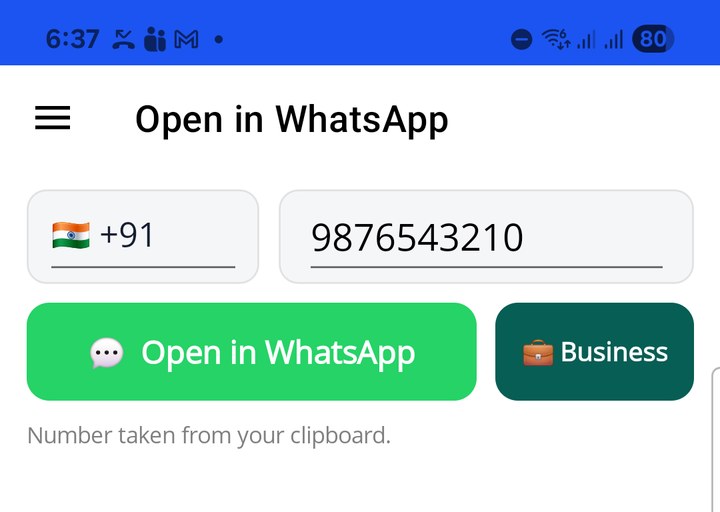
☰ › WhatsApp shows a country picker, the number, and two buttons: 💬 Open in WhatsApp and 💼 Business (shown only when WhatsApp Business is installed). If a number was just copied, it is filled in already and the line below says Number taken from your clipboard. Edit the number if needed and tap a button; WhatsApp opens the chat.
Six ways to get there
| Where you are | What to do |
|---|---|
| Any app with selectable text (browser, PDF, notes) | Select the number. In the popup toolbar tap ⋮ › WhatsApp. Quickey opens with the number filled in. |
| Any app with a Share button | Share the text to Quickey: WhatsApp chat. |
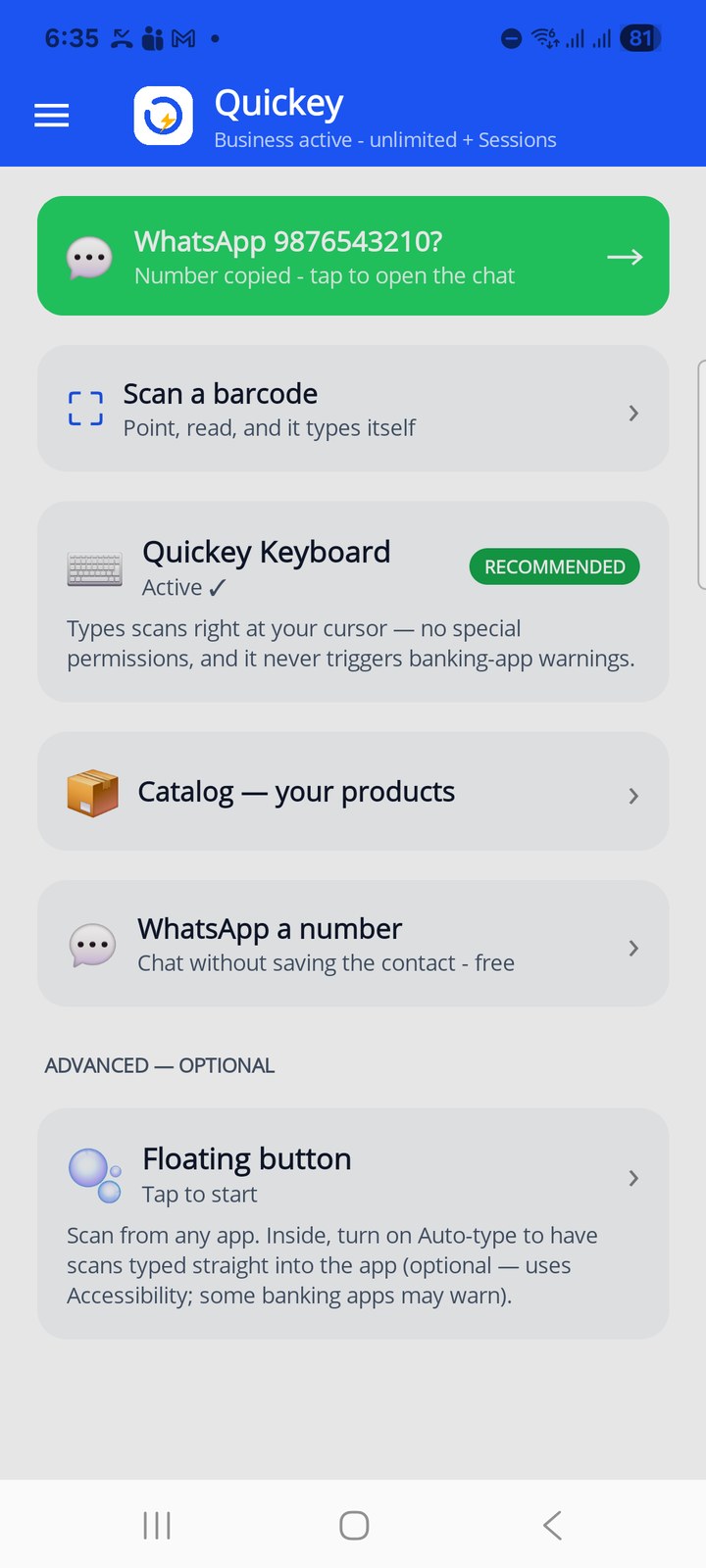
| You copied a number | Open Quickey: the green chip at the top of Home reads Number copied, tap to open the chat. |
| Typing with the Quickey keyboard | The 💬 WhatsApp +91 … chip appears in the suggestion strip. Tap it. |
| Reading a label or visiting card with OCR | If the text contains a phone number, a WhatsApp button appears on the OCR page. |
| Inside another app with the floating bubble on | Tap the bubble › WhatsApp a number. It uses the number on the clipboard. |
The Home tile WhatsApp a number opens the page empty so you can type a number by hand.
Country code
Numbers with a + prefix are used as they are. A local number gets the country of your SIM (for example +91 in India). Change the country in the picker if the number is foreign; the picker remembers a choice you make by hand, but not one the app detected.
Numbers written as 00 44 … are converted to +44 … automatically. Spaces, dashes and brackets are ignored.