Guides › Sessions (teams)
Sessions: stock counts with many phones
Updated 6 October 2026 · Quickey 1.10 (build 16)
A session collects scans from up to 25 phones into one list on the PC, with time, device and operator on every row. The PC side is Quickey Connect (free); each phone needs its own Business plan (₹149/month per phone) or Business credit from a video.
On this page
Live vs pocketQuickey Connect on the PCCreate a live sessionThe Live Sessions tabJoin from the phoneScanning in a sessionPocket sessionsSynced Sessions tabExport and finishLive session or pocket session
- Live session: the PC creates it and phones join. Every scan lands in the PC list instantly. If the PC cannot be reached, the phone refuses the scan and says so, so the PC list is always right.
- Pocket session: no PC nearby. The phone keeps its own list (a warehouse aisle, a truck, a market stall) and you sync it to the PC later. Syncing is safe to repeat; nothing is ever duplicated.
While a session is active, every scan from the Barcode page, the floating button or the keyboard goes to the session. Nothing is typed.
Sessions need Business on the phone, or Business credit earned by watching a video. See Plans. Quickey Connect on the PC is free.
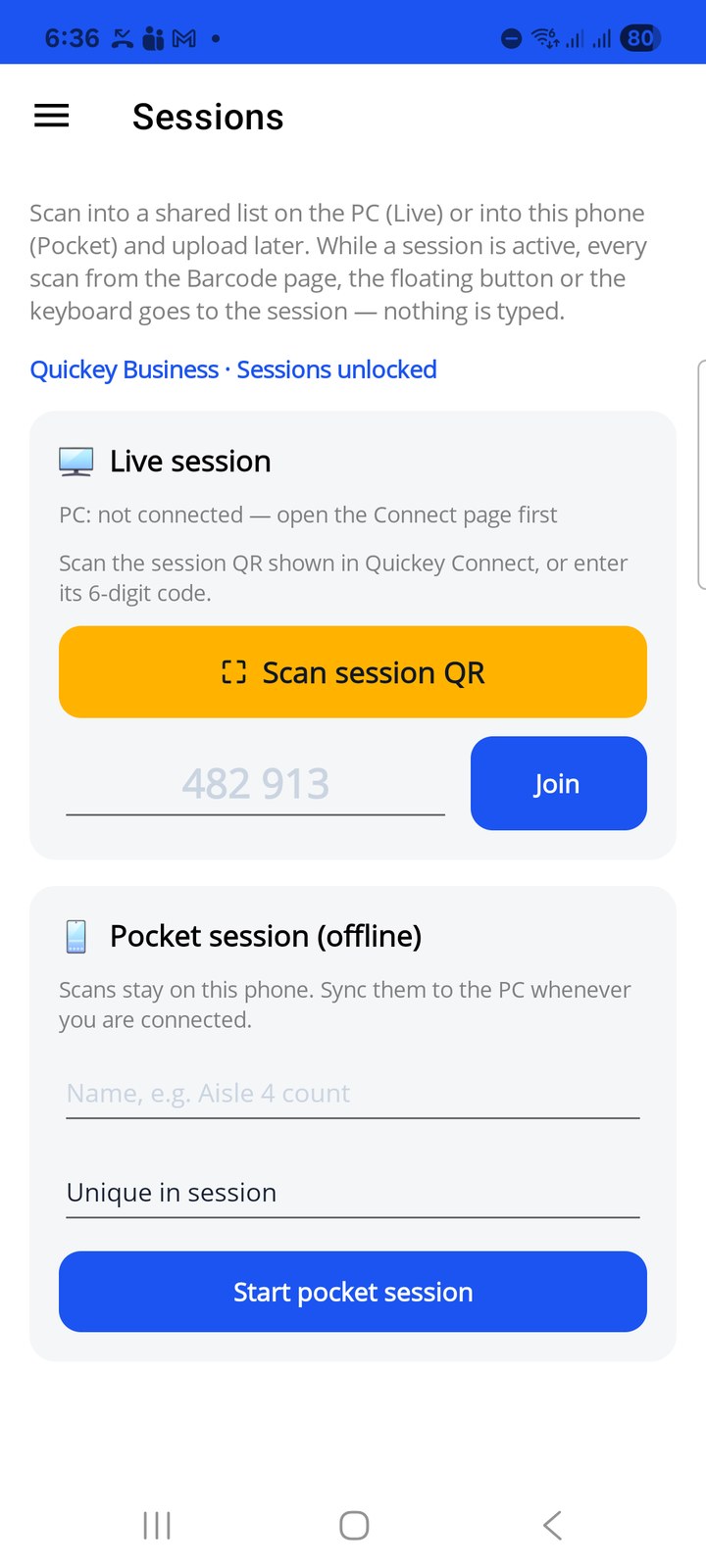
Quickey Connect on the PC
Install Quickey Connect from the download page (see the Connect guide for the first-run steps). The window has three tabs:
- Type at cursor: the pairing QR and code. Scanning this QR from a phone pairs it for Wi-Fi and internet at once. The log below shows every phone that connects and every scan that is typed.
- Live Sessions: create and run sessions, watch scans arrive, export.
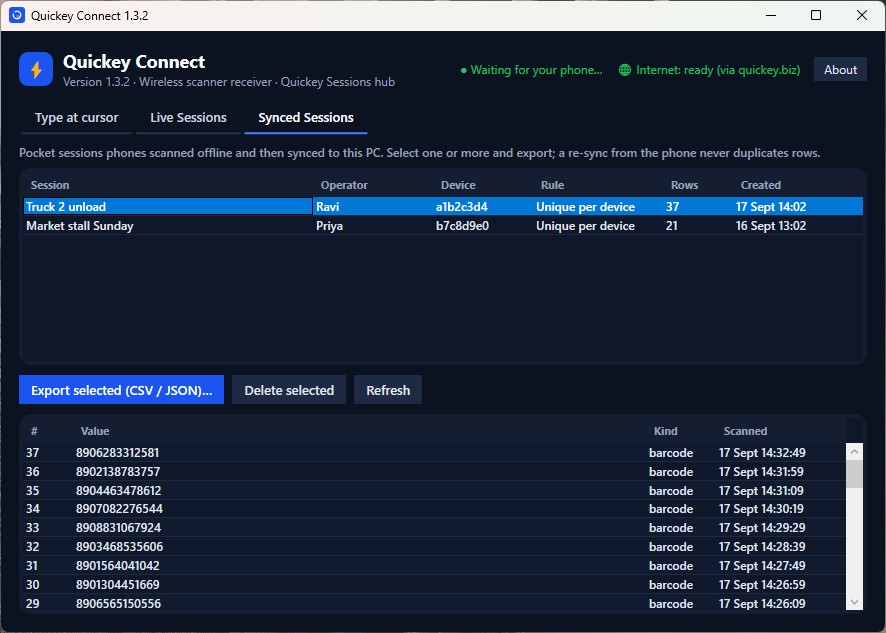
- Synced Sessions: pocket sessions that phones scanned offline and uploaded later.
The header shows Waiting for your phone… until a phone connects, and Internet: ready (via quickey.biz) when the internet path is available for phones on other networks.
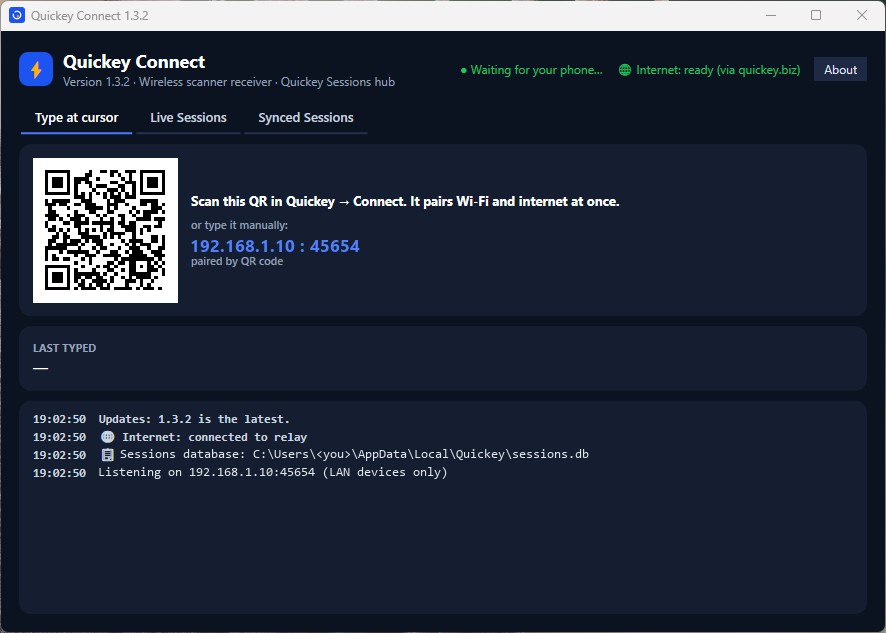
Create a live session
- Open the Live Sessions tab and click + New live session.
- Session name: a default with the date is filled in; type something you will recognise, for example Aisle 4 count.
- Duplicate rule: Allow duplicates, every scan is a row; Unique in session, a value counts once (the default); or Unique per device, once per phone.
- Expected count (optional): the number of items you expect. The tab then shows a progress bar toward it.
- Notes (optional): anything for the export, such as the rack range.
- Click Start session. The PC shows a 6-digit join code and a session QR.
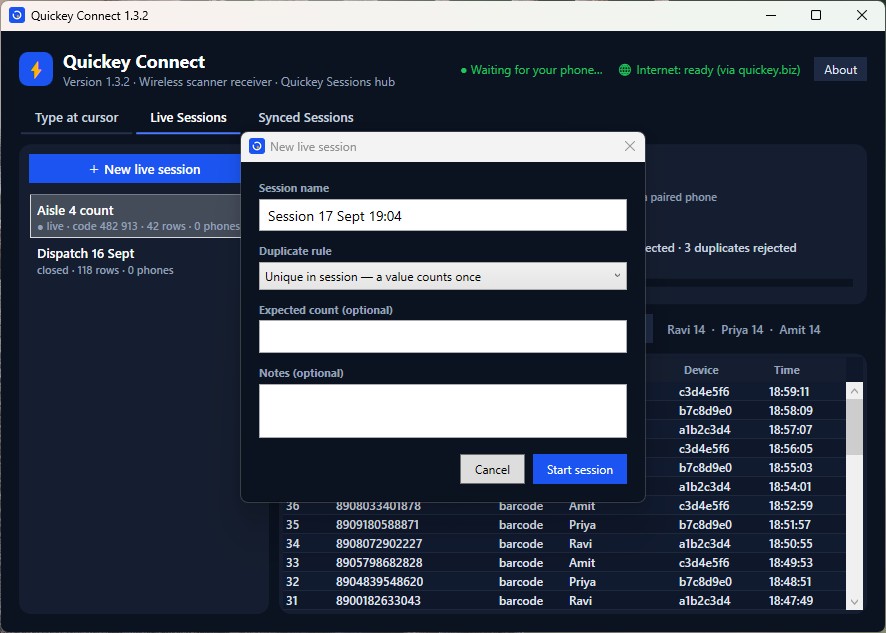
The Live Sessions tab
The left column lists your sessions with their state: ● live · code 482 913 · 42 rows · 3 phones, or closed. Select one to see its details on the right:
- The session QR and the join code in large digits. Phones scan the QR (it pairs and joins in one step) or type the code.
- A summary line: rule, rows scanned of N expected, duplicates rejected, and 🔒 locked when locked. The notes appear under it, and a progress bar when an expected count was set.
- Buttons: End session (phones can no longer scan into it; the rows stay), Lock (no new phones can join; scanning continues), Export CSV / JSON…, Delete (removes the session and its rows after a confirmation).
- Per-operator counts next to the buttons, for example Ravi 14 · Priya 14 · Amit 14. Hover for the full device table.
- The scan grid: #, Value, Kind (barcode or OCR), Operator, Device, Time. Newest first, updated the moment a phone scans.
A live session holds up to 25 phones. When a duplicate is refused it is counted here and flagged on the phone that scanned it.
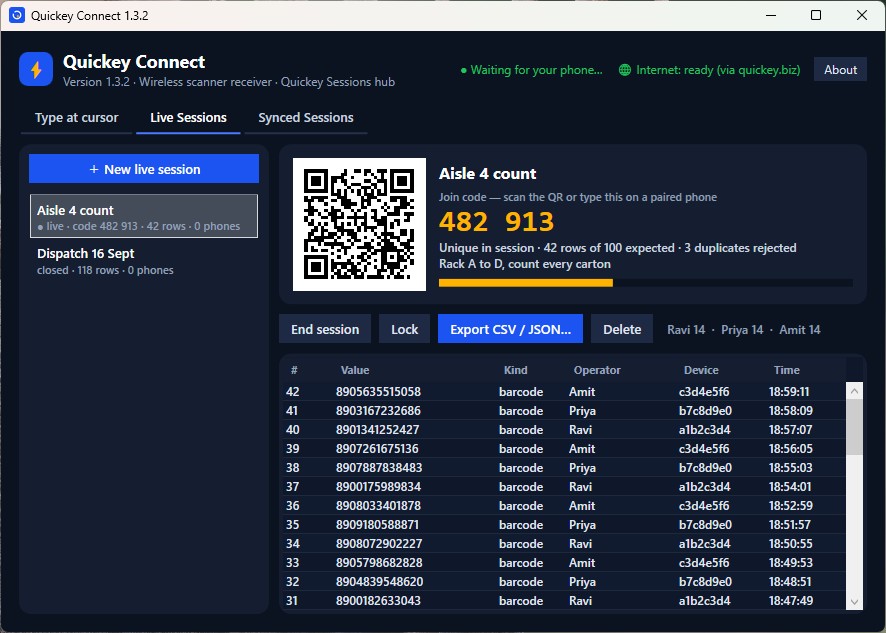
Join from the phone
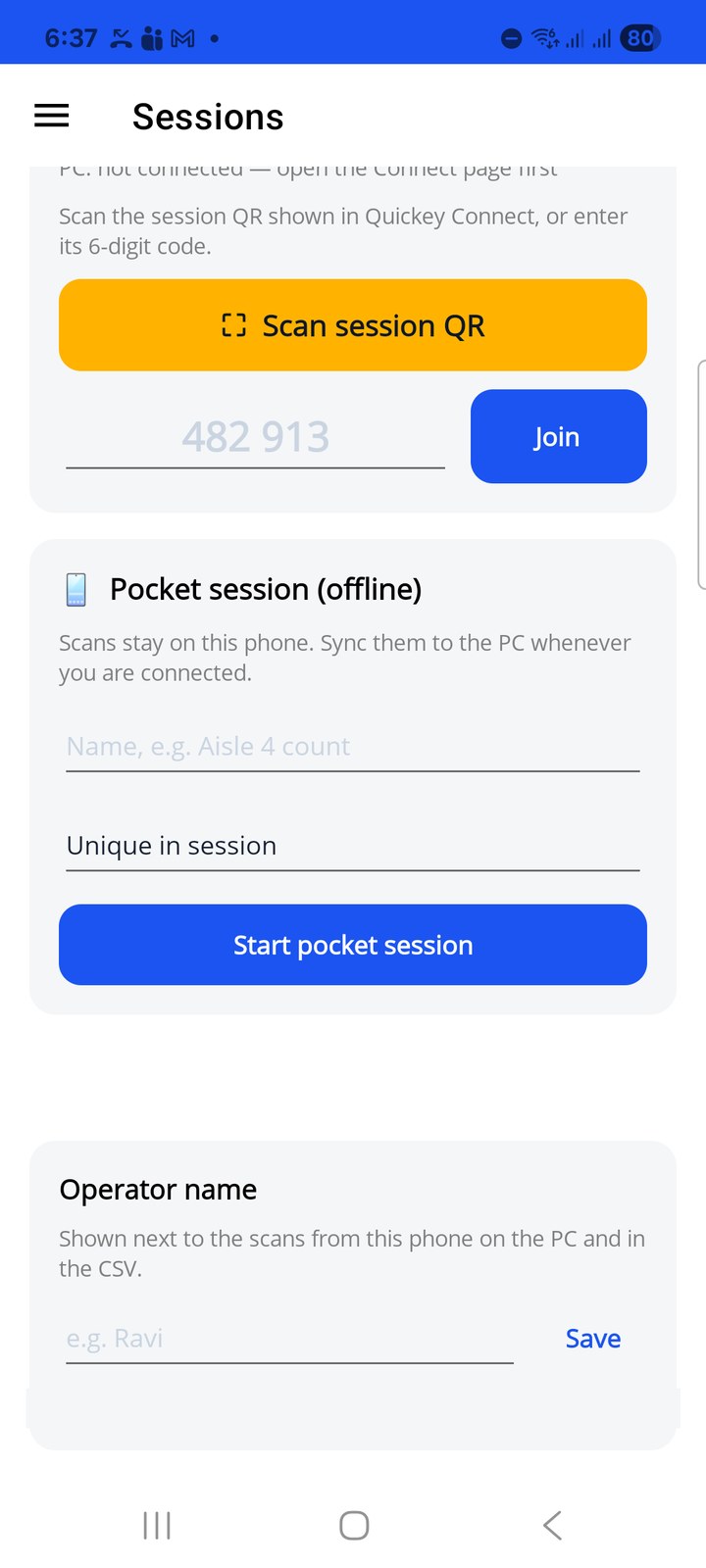
Open ☰ › Sessions on each phone. Two ways:
- ⛶ Scan session QR: scan the QR on the PC screen. If the phone is not paired yet, this pairs and joins in one step.
- Type the 6-digit code in the box and tap Join. The phone must already be paired with that PC (Connect); the line above the button shows PC: WiFi or PC: not connected.
Before joining, set the Operator name at the bottom of the page (for example Ravi). It is shown next to this phone's scans on the PC and in the CSV, so you know who counted what.
Scanning in a session
After joining, tap ⛶ Open scanner. The screen splits: camera on top, the live list below (newest first). Counters show scans by this phone, in the session, and duplicates caught by the rule. A duplicate is flagged the moment it happens, on the phone that scanned it, so the person can move on.
In a pocket session, Delete last removes your last scan if you scanned the wrong item. Leave (live) or Pause (pocket) returns to the Sessions page. Wi-Fi drops reconnect automatically; if the PC stays unreachable the strip turns orange and scans are refused rather than lost.
Pocket sessions (offline)
- On the Sessions page, type a name under Pocket session (offline), pick the Duplicates rule (Unique in session, Allow duplicates, Unique per device) and tap Start pocket session.
- Scan as usual. Rows stay on this phone under On this phone.
- When you are near the PC and connected, tap Sync to PC. The session appears in Quickey Connect under Synced Sessions. Resume continues scanning into it later (sync again to send only the new rows); Delete removes it from the phone.
The Synced Sessions tab
Every pocket session a phone has uploaded is listed with Session, Operator, Device, Rule, Rows and Created. Select one to preview its rows below; select several to export them together with Export selected (CSV / JSON)…. Delete selected removes them from the PC only; the phone keeps its own copy. Refresh reloads the list after a phone syncs.
Export and finish
Choose Export CSV / JSON… on either tab. The save dialog offers CSV (Excel) or JSON and suggests a file name with the session name and date. The CSV opens directly in Excel and has one row per scan with these columns: session, value, kind, symbology, scanned_at, received_at, device_id, operator, seq.
Sessions are stored in a local database on the PC. When a count is done, export it, then End session so phones stop scanning into it, and Delete it when you no longer need the rows.