Guides › Clipboard sync
Clipboard sync and history
Updated 6 October 2026 · Quickey 1.10 (build 16)
Turn on Clipboard sync and text you copy on the phone appears on the PC clipboard, and text you copy on the PC appears on the phone. Every clip is also kept in a history you can pin and reuse.
On this page
Turn it onHow the two directions workWithout the Quickey keyboardClipboard history on the phoneClips in the keyboardClipboard tab in Quickey ConnectLimits and privacyTurn it on
- Pair the phone with the PC over Wi-Fi or internet (Connect guide). Clipboard sync needs the data link; the Bluetooth keyboard link cannot carry it.
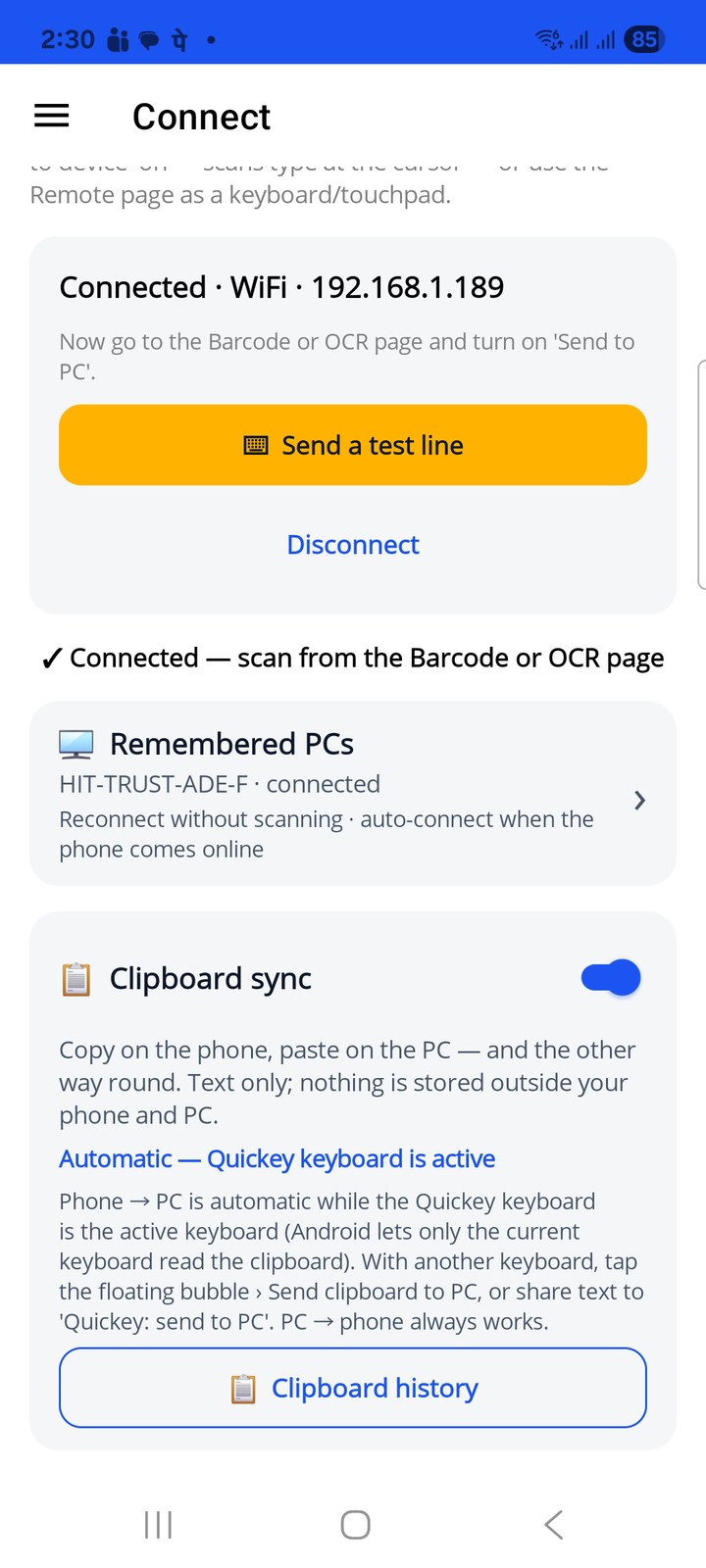
- On the Connect page, switch on 📋 Clipboard sync. It is off by default. It follows the same rule as scanning: free scans, banked ad credit or Premium all allow it; when the bank is empty the switch opens Your Plan so you can watch a video or subscribe.
- On the PC, tick Send my clipboard to paired phones in the Quickey Connect window if you also want PC → phone. Phone → PC is always accepted by the PC.
The line under the switch tells you the current mode: Automatic — Quickey keyboard is active, Manual, or Waiting for a PC.
How the two directions work
- Phone → PC: copy text in any app while the Quickey keyboard is the phone's active keyboard. It is sent at once and lands on the Windows clipboard, ready to paste. The Connect log shows clipboard from phone (N chars).
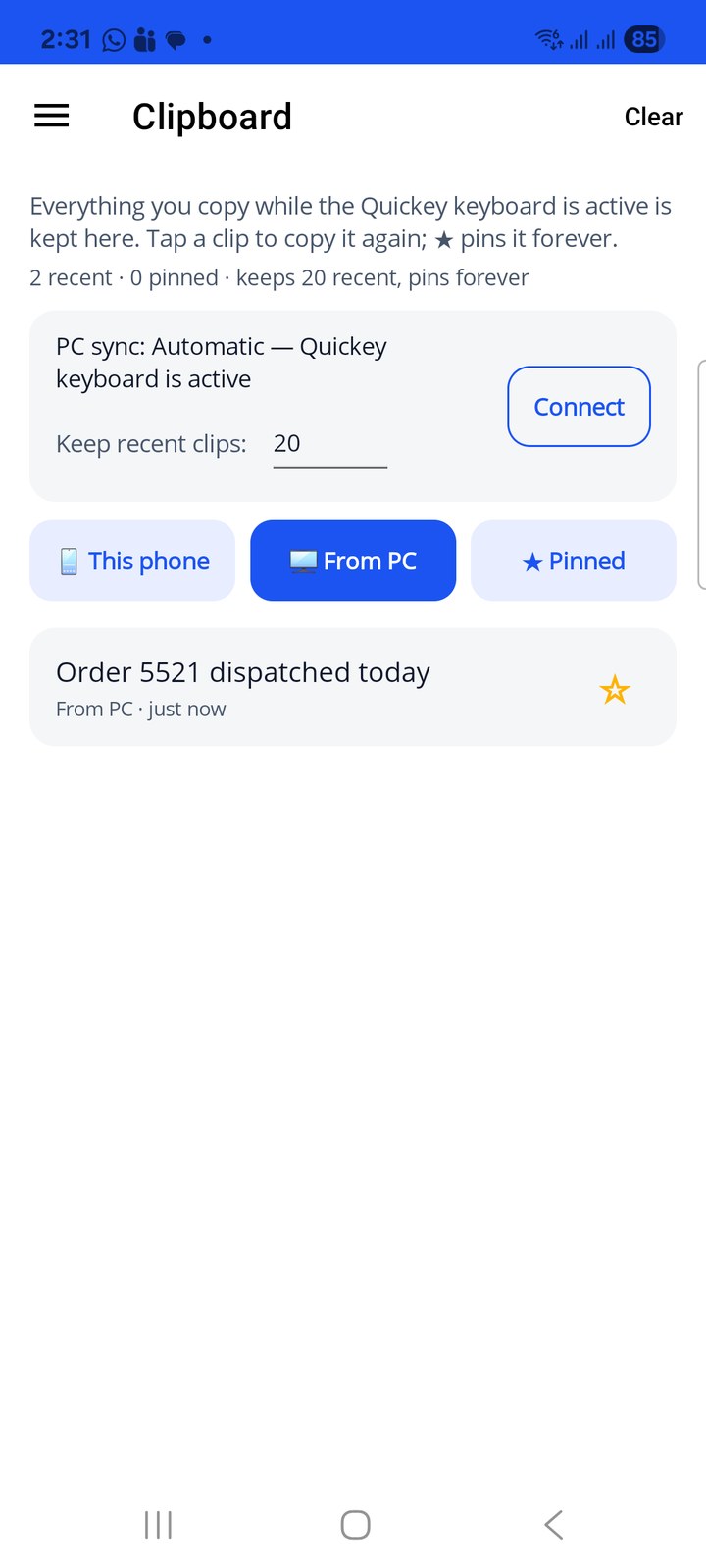
- PC → phone: copy text on the PC. Quickey Connect sends it to every paired phone; the phone puts it on its clipboard and adds it to history under From PC. The log shows clipboard sent to 1 phone.
Nothing polls. Both sides react to the copy itself, so there is no battery or network cost while you are not copying.
Without the Quickey keyboard
Since Android 10 only the app on screen and the active keyboard may read the clipboard. If you type on Samsung Keyboard or Gboard, phone → PC cannot be automatic (PC → phone still is). Two one-tap paths cover it:
- Floating bubble: tap the bubble and choose 📋 Send clipboard to PC. Quickey briefly takes focus, reads the clipboard and sends it. Switch the item on or off on the Floating Button page.
- Share sheet: select text in any app, tap Share and pick Quickey: send to PC. No clipboard access is needed for this one.
The Connect page shows Manual in this situation so you know which path applies.
Clipboard history on the phone
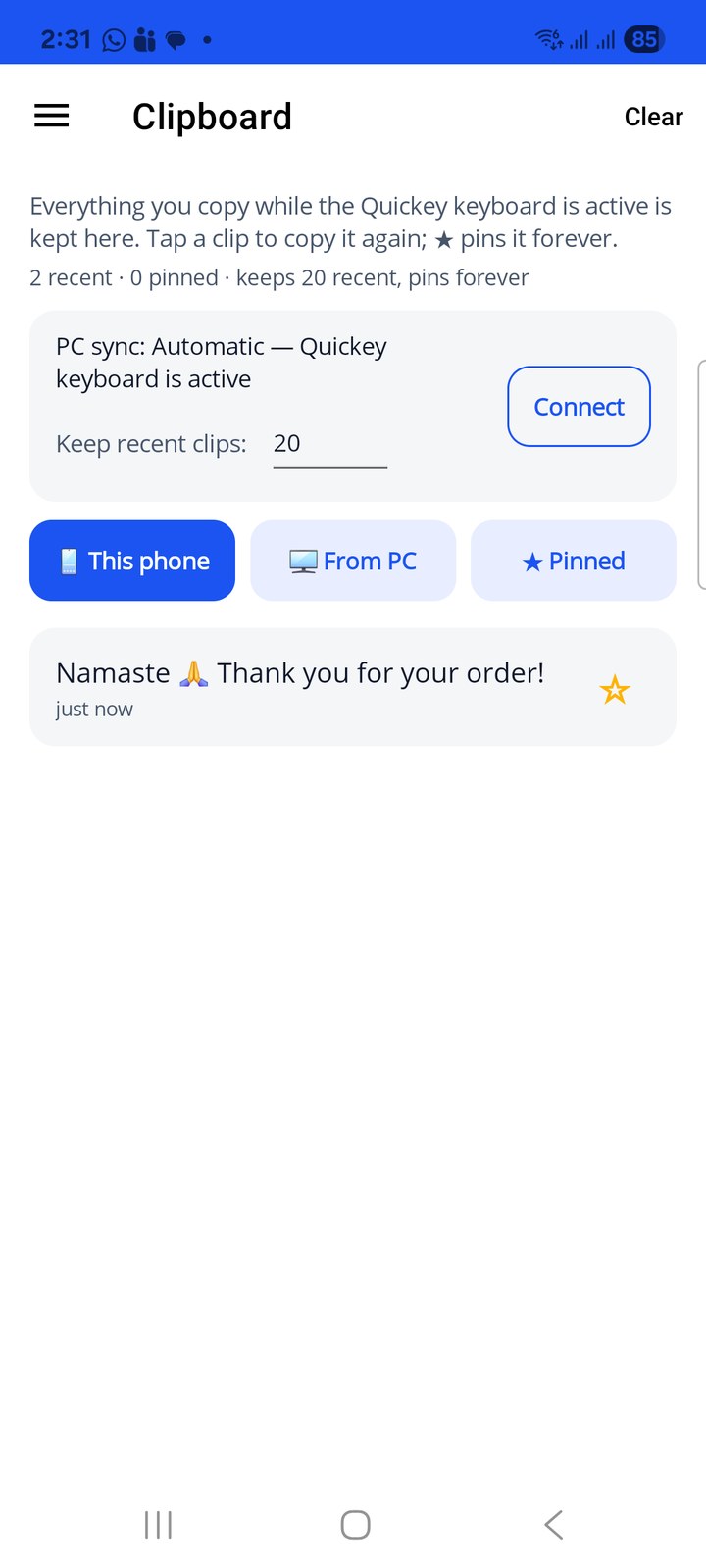
☰ › Clipboard lists everything captured, newest first, in three tabs: 📱 This phone, 🖥 From PC and ★ Pinned.
- Tap a clip to put it back on the clipboard. Swipe left for Send to PC or Delete.
- Tap ☆ to pin. Pinned clips are kept forever and lead every list; the rest expire after 24 hours.
- Keep recent clips: 10, 20 or 50 (default 20). Clear removes the recent ones and keeps the pins.
Clips in the keyboard
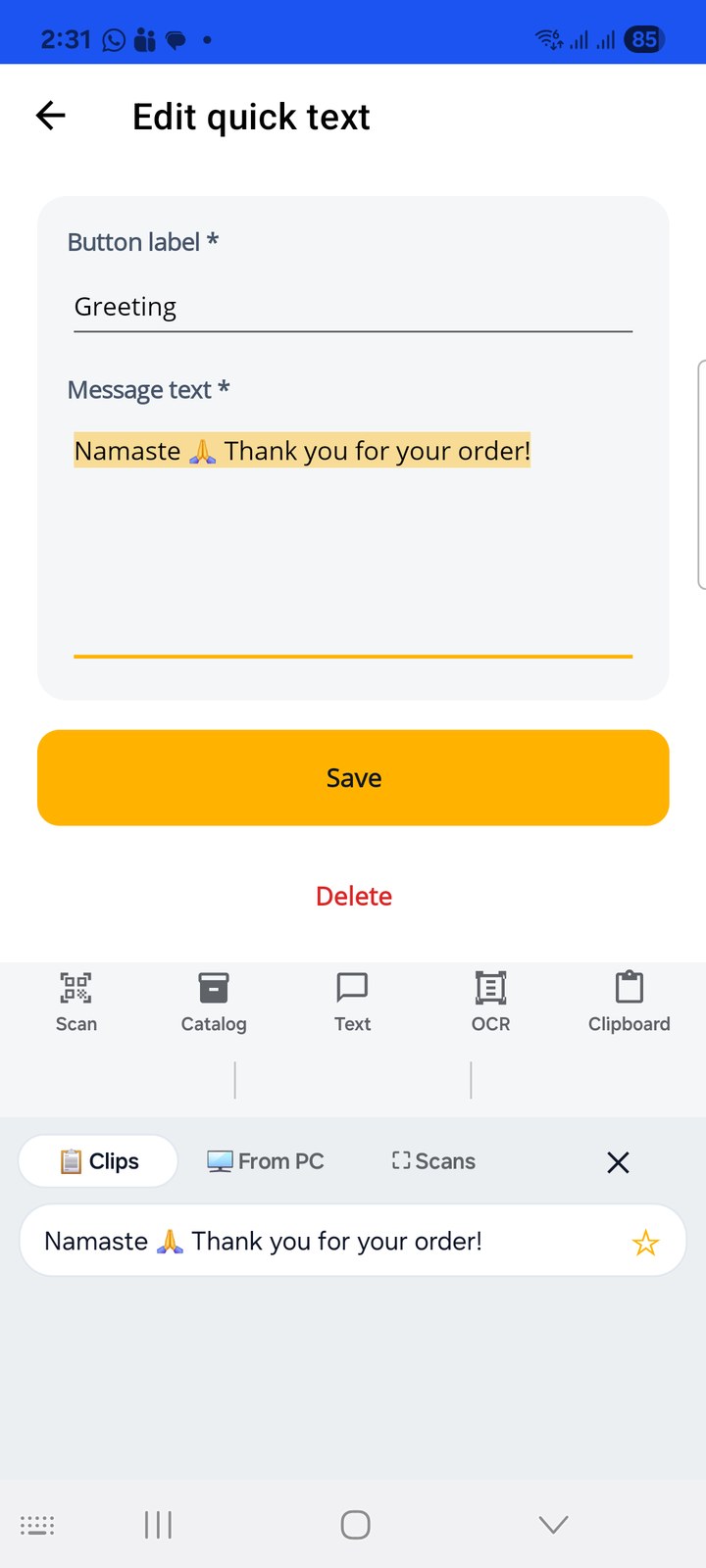
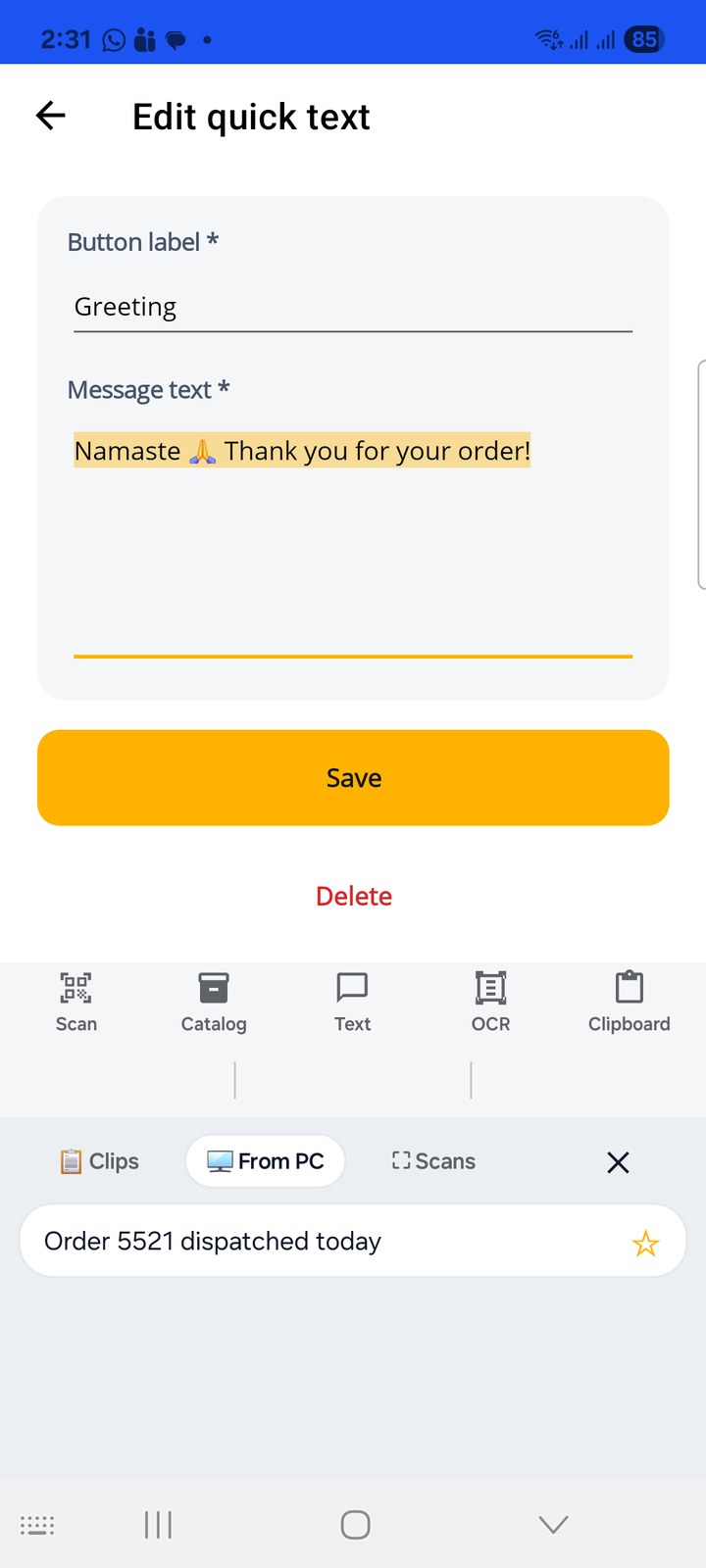
Tap Clipboard in the keyboard toolbar, the way you would on Samsung Keyboard or Gboard. A panel replaces the keys with three tabs: 📋 Clips (copied on this phone), 🖥 From PC, and ⛶ Scans (your last scanned values, typed with your prefix and suffix). Tap a row to type it at the cursor; tap ☆ to pin it. Pinned rows are marked ★ and come first. Typing a clip is plain typing, so it never counts against your scans.
The Clipboard tab in Quickey Connect
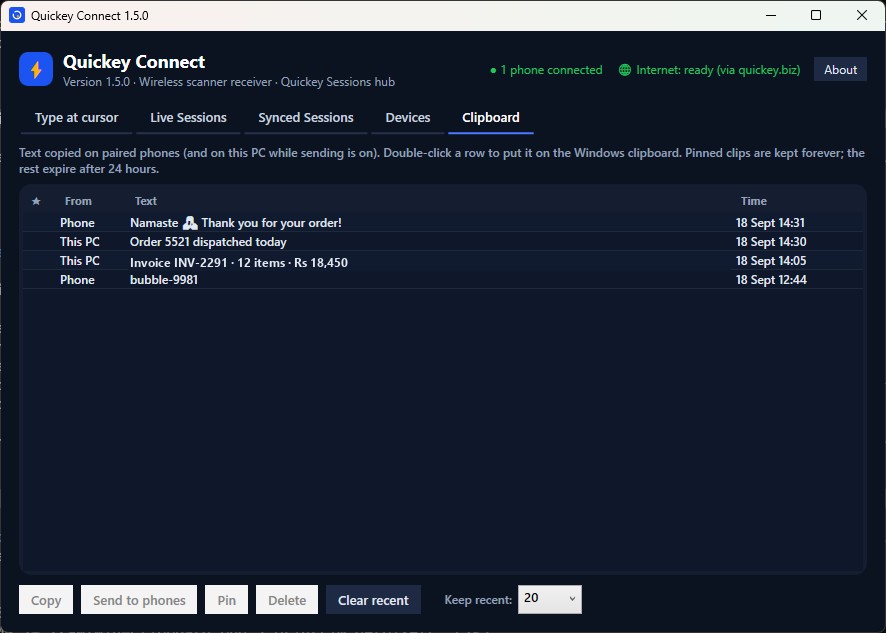
Quickey Connect keeps the same history on the PC. The Clipboard tab lists clips from phones and, while sending is on, from this PC. Double-click a row or press Copy to put it on the Windows clipboard; Send to phones pushes it to every paired phone; Pin keeps it forever; Clear recent removes the unpinned ones. Keep recent sets the size (10, 20, 50).
Limits and privacy
- Text only, up to 10,000 characters per clip. Images and files are not synced.
- Clips that the source app marks sensitive (password managers on Android 13+, and Quickey's own scan values) are never stored or sent.
- History lives only on the phone and the PC. Clips travel the same way as scans: on the same Wi-Fi they stay inside your local network; over the internet they are encrypted end to end, so the relay cannot read them.
- Quickey Connect 1.4 or newer is required on the PC. On the phone, sync pauses while your scan credit is empty and resumes as soon as you bank credit or subscribe.