Guides › Quickey keyboard
Using the Quickey keyboard
Updated 6 October 2026 · Quickey 1.10 (build 16)
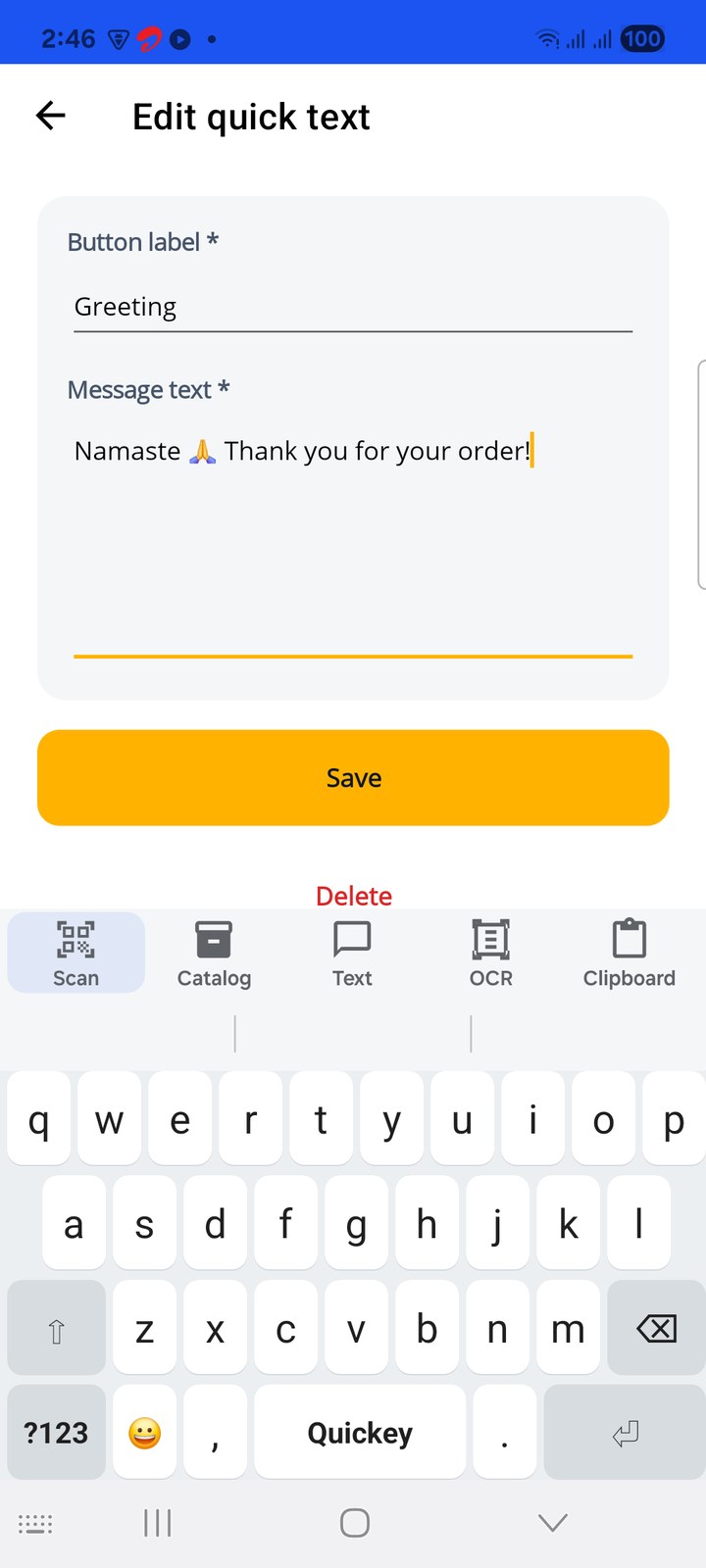
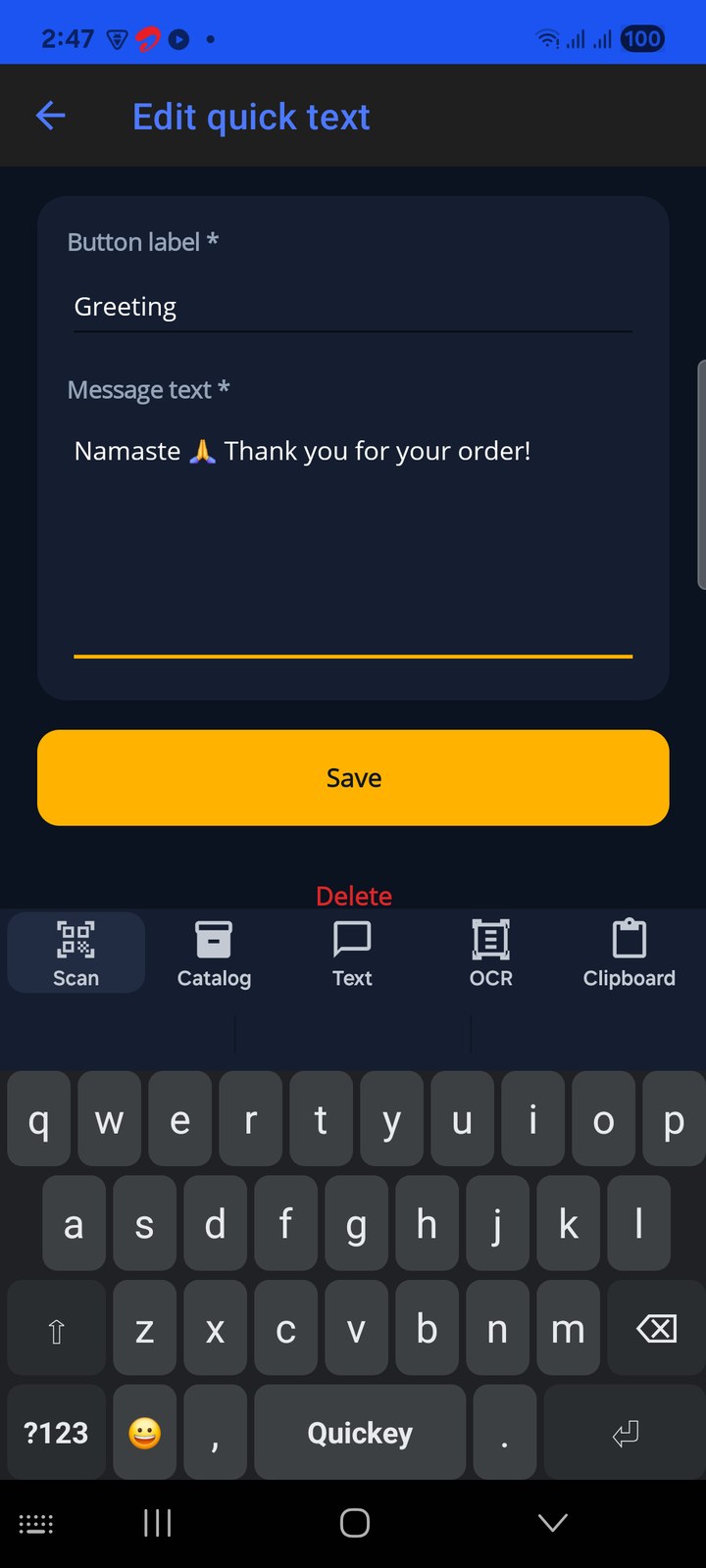
The Quickey keyboard is a normal QWERTY keyboard with a slim toolbar on top. That toolbar is where scanning happens, so you never leave the app you are typing in.
On this page
The toolbarLayouts and the Enter keyScan a barcodeCatalog panelText panelOCR from the keyboardEmojiWhatsApp chipKeyboard settingsTipsThe toolbar
Above the letters sits a slim toolbar with five buttons, then the suggestion strip:
- ⚡ Scan opens the camera. The decoded barcode is typed at the cursor, with your prefix and suffix from Barcode Settings.
- 📦 Catalog opens your product list inside the keyboard. Tap a product to type it (or share its photos).
- 💬 Text opens your saved messages. Tap one to type it.
- 🔤 OCR opens Scan text inside the keyboard. The recognized text (or the fields your extract rules pick) is typed at the cursor. See OCR from the keyboard.
- Clipboard opens the clipboard panel: everything you copied on this phone, clips that came from the PC (clipboard sync), and your last scanned values. Tap a row to type it; tap ☆ to pin it so it stays forever at the top.
The strip under the buttons shows three word suggestions while you type (never in password or number fields). In browser address bars and search fields the row stays visible, so Scan is always one tap away.
Keys light up with a small popup as you press them and give a light vibration; long-press a letter for accents and digits (the top row has 1 to 0 on long-press), long-press . or , for punctuation. ?123 opens the symbols, =\< the second symbols page.
Layouts and the Enter key
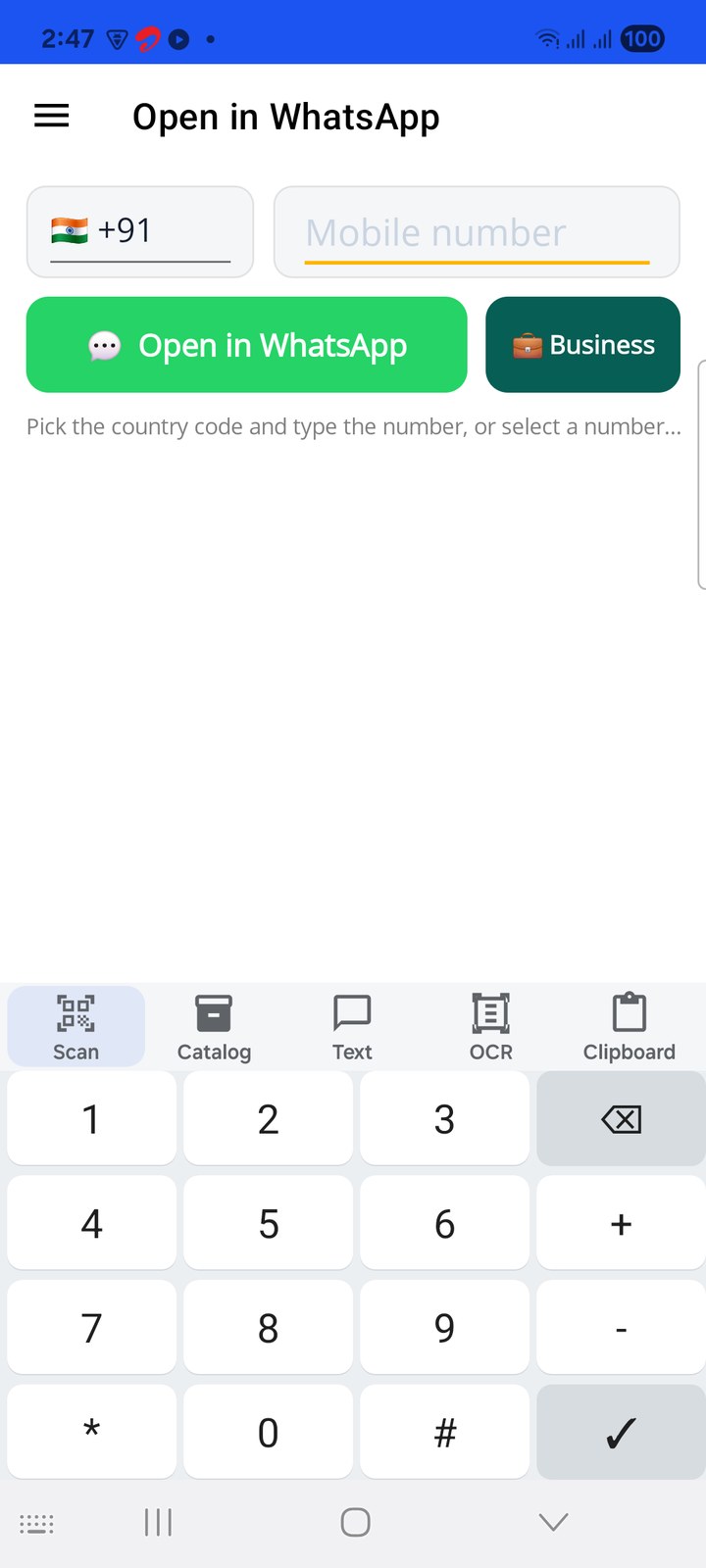
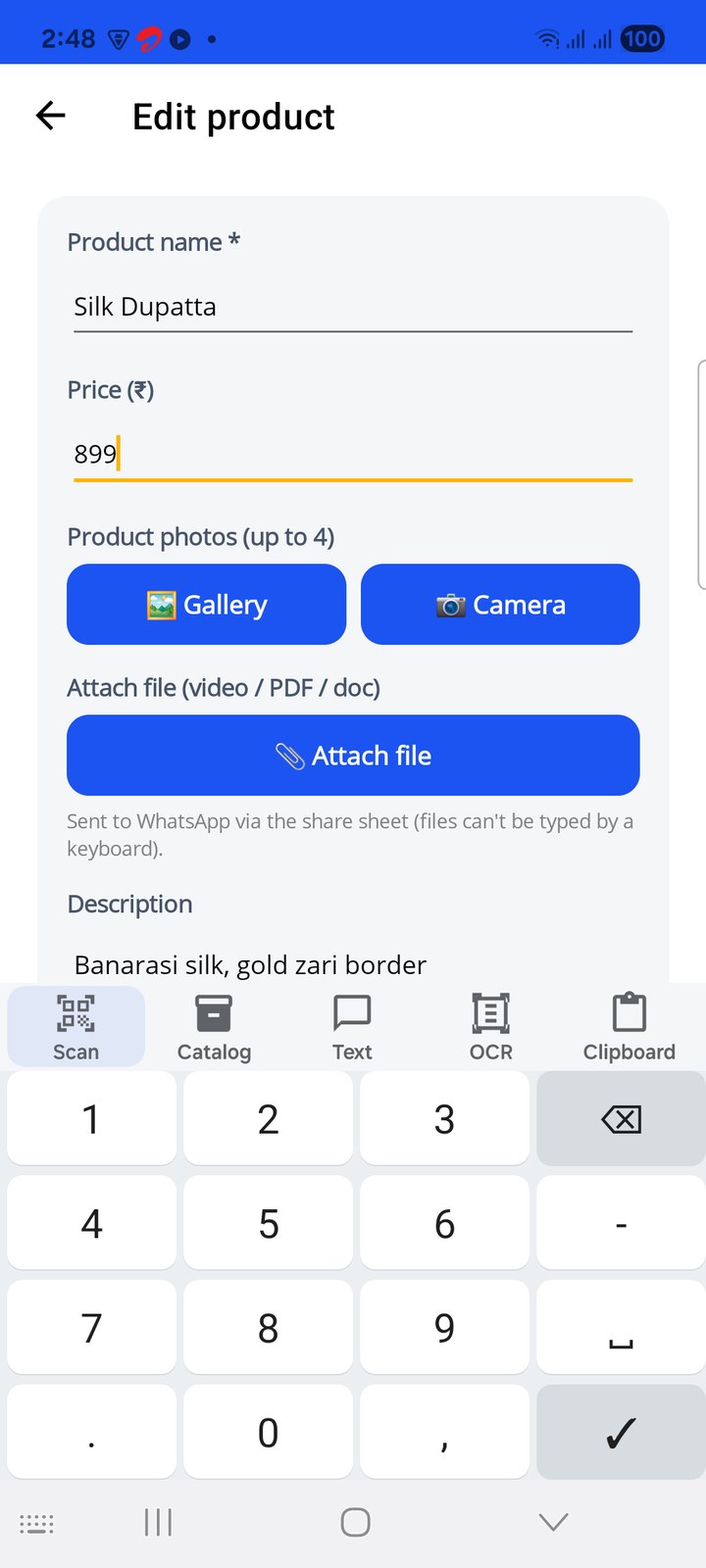
The keyboard reads what kind of field you tapped and changes shape to match, the way Gboard does:
- Phone numbers (the WhatsApp page, contact forms, OTP boxes): a big phone pad with 1 to 9, 0, +, -, * and #.
- Amounts and quantities (a price, a stock count, a spreadsheet number cell): a number pad with ., , and -.
- E-mail addresses: the letters with an @ key and a .com key; long-press .com for .in, .net, .org and .co.
- Web addresses: the letters with / and .com (long-press for www.).
- Dates and times: a pad with /, -, : and AM / PM.
- Passwords: the letters with a number row on top, no popups and no suggestions, so nothing is shown or remembered.
The Enter key shows what the app will do with it: Go in an address bar, 🔍 in a search box, ➤ in a chat, →| to jump to the next field of a form, ✓ to finish. In a multi-line box it is a plain new line.
Sentences start with a capital letter by themselves (the ⇧ key lights up to show it). Tap ⇧ for one capital, double-tap it for caps lock (⇪), tap again to release.
Scan a barcode from the keyboard
- Tap the field you want the code in (a WhatsApp message, a spreadsheet cell, a search box).
- Tap ⚡ Scan. A camera window opens over the app.
- Point at the barcode. It beeps, the window closes, and the code is typed. If your suffix ends with Enter, the message is sent or the cursor jumps to the next row.
With Continuous (kiosk) mode on in Barcode Settings, the camera stays open and types item after item until you close it. That is the fastest way to fill a list.
Scans from the keyboard count toward the same free quota as the Barcode page. Typing on the keyboard itself is always free.
Catalog panel
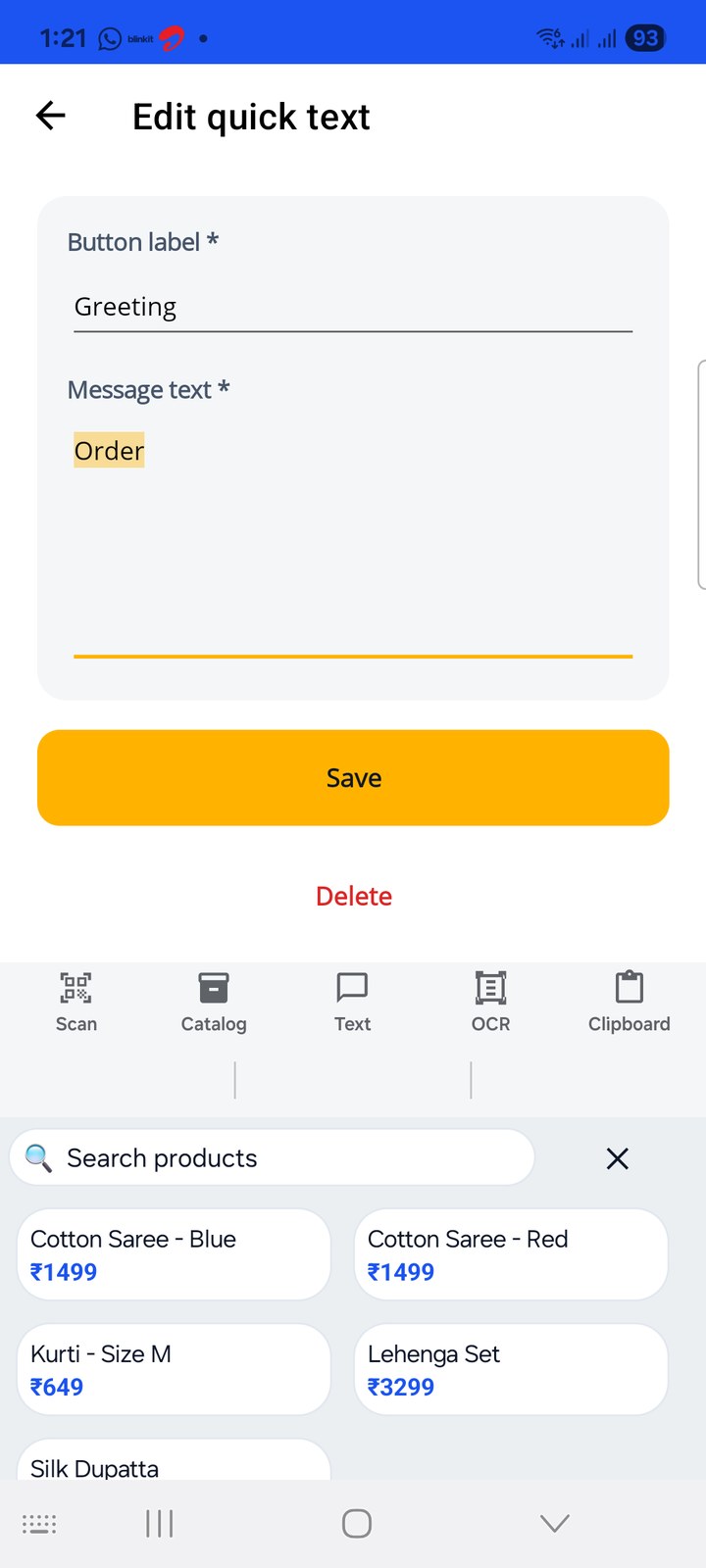
Tap 📦 Catalog. A search box and your products appear in place of the letters. Type to filter, then tap a product.
- A product with one photo is typed straight into the current chat: the photo, then name, price and description as the caption.
- A product with 2 to 4 photos or a file is sent through the Android share screen, where you pick the chat.
How the list looks (cards or compact rows) is set in Catalog Settings.
Text panel
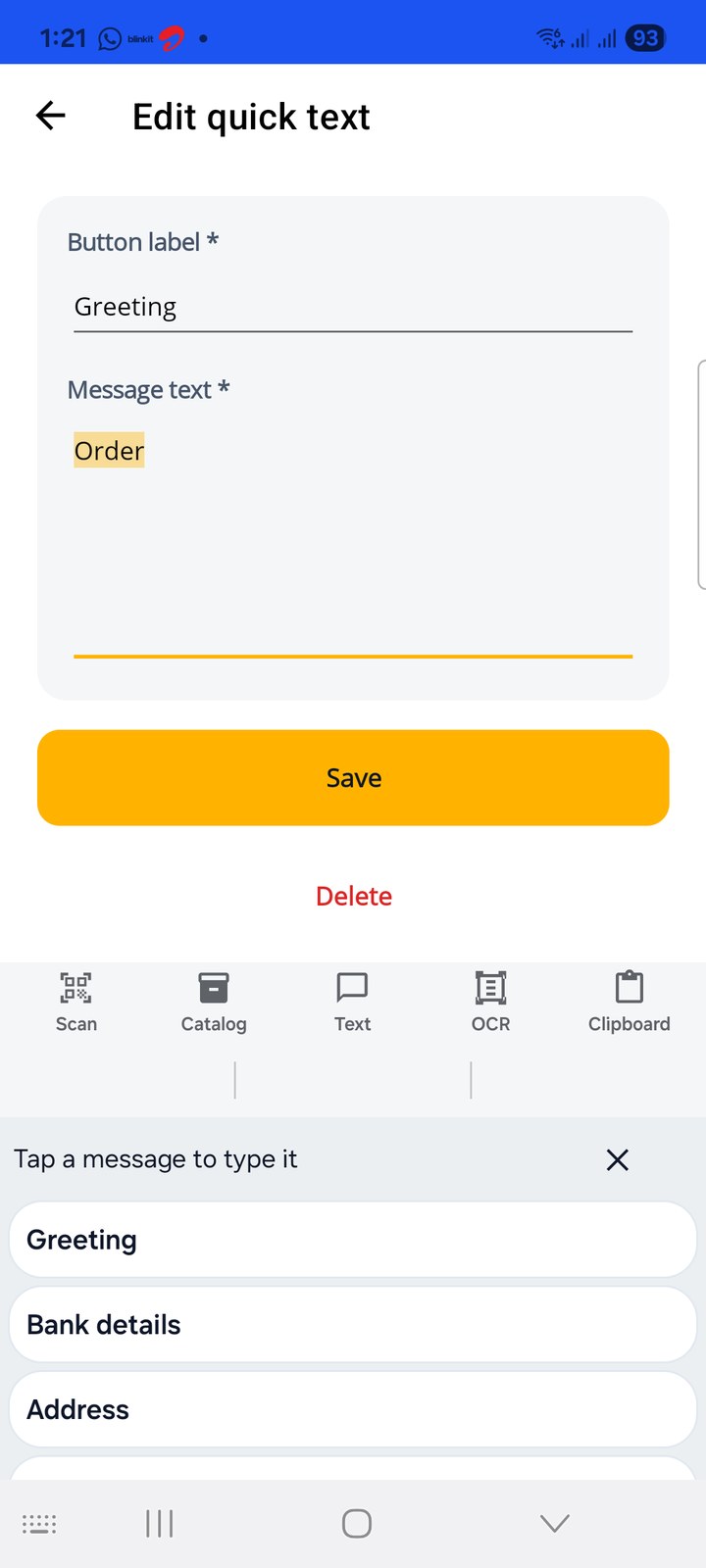
Tap 💬 Text to see your quick texts (greeting, bank details, address, delivery note). Tap one and it is typed at the cursor. Add or edit messages on the Text page.
OCR from the keyboard
Tap 🔤 OCR. The same Scan text screen opens, in a smaller panel (about 62% of the screen) so you can still see the app you type into:
- At the top: Scan text · Finding: … with the fields you chose, over the camera.
- Below the camera: the step panel (Point at the label, Hold still…, Sent to the cursor) and the round Capture button.
- Auto: ON / OFF. ON: Quickey sends by itself when the reading is steady. You do not tap Capture.
- Keep open: ON / OFF. ON: the camera stays open for the next label until you tap Close. OFF: you go back to the keys after each send.
- Many labels? Use Pick text and Close.
Keep open follows Auto (Auto ON also keeps the camera open) until you set Keep open yourself. The same two choices are in OCR Settings › Capture.
Emoji
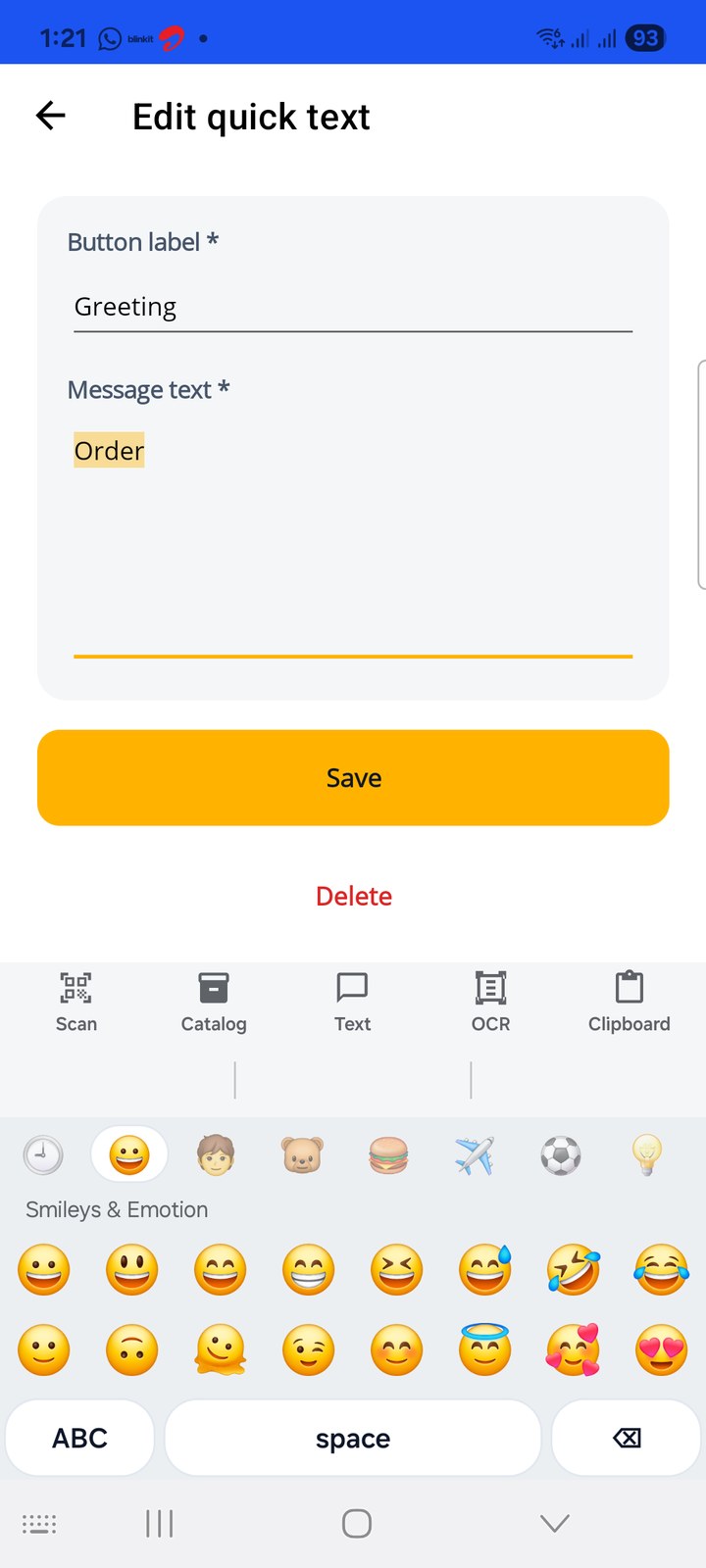
Tap the 😀 key in the bottom row (next to ?123). The keys are replaced by the emoji panel:
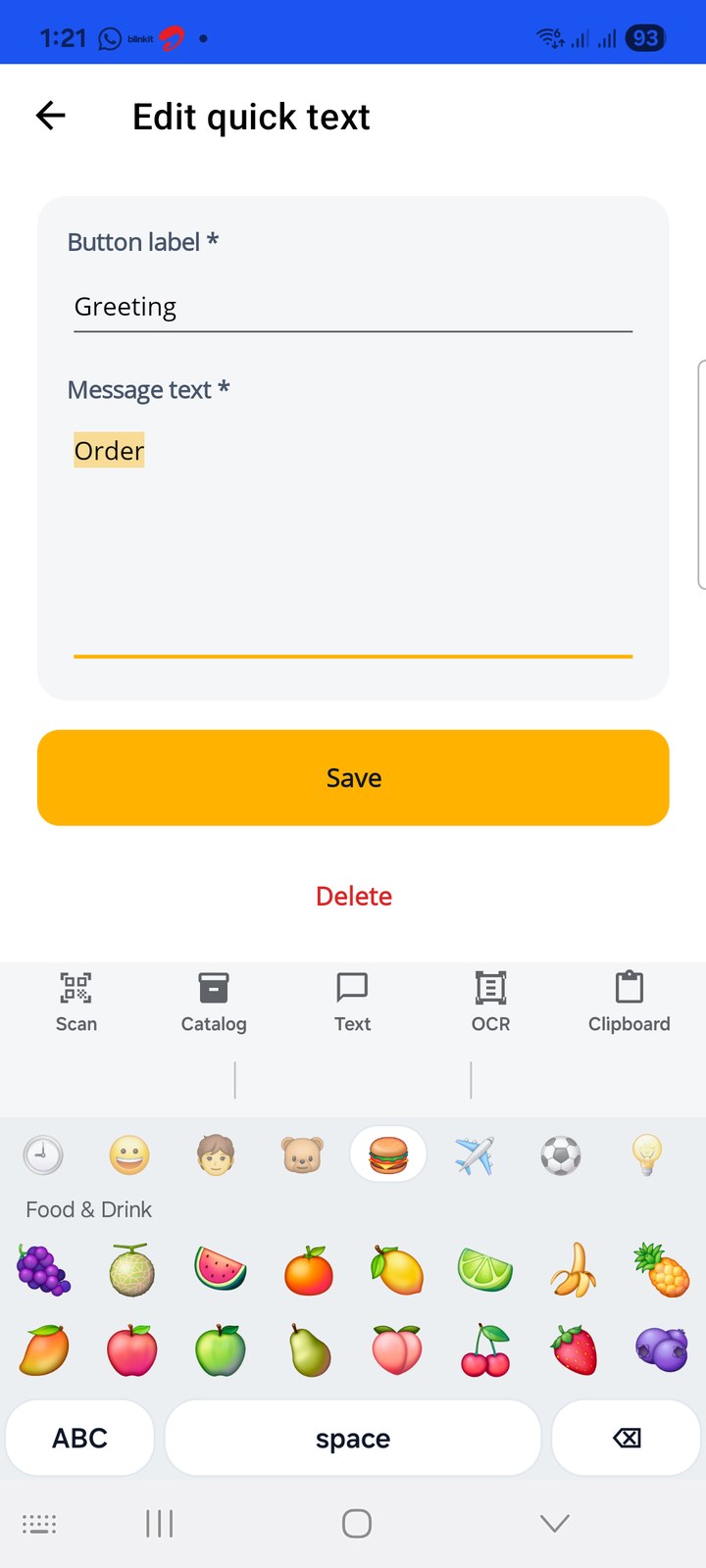
- A row of category tabs across the top: recently used, then Smileys & Emotion, People & Body, Animals & Nature, Food & Drink, Travel & Places, Activities, Objects, Symbols and Flags. The selected tab is highlighted and the category name is written under the row.
- The emoji grid, eight per row, scrolls within the category. Tap one and it is typed at the cursor. The full Unicode set is included (about 1,900 emoji).
- The bottom row has ABC to return to the letters, a space bar and ⌫.
Emoji you use collect under the first tab (🕘), newest first, so your regular ones are one tap away. Emoji are plain typing and never count against your scans.
The WhatsApp chip
When you copy a phone number anywhere (a website, an SMS, a PDF), a green 💬 WhatsApp +91 … chip appears in the suggestion strip. Tap it and Quickey opens a WhatsApp chat with that number, no contact saved. Details and other ways to do this are in WhatsApp a number.
Keyboard settings
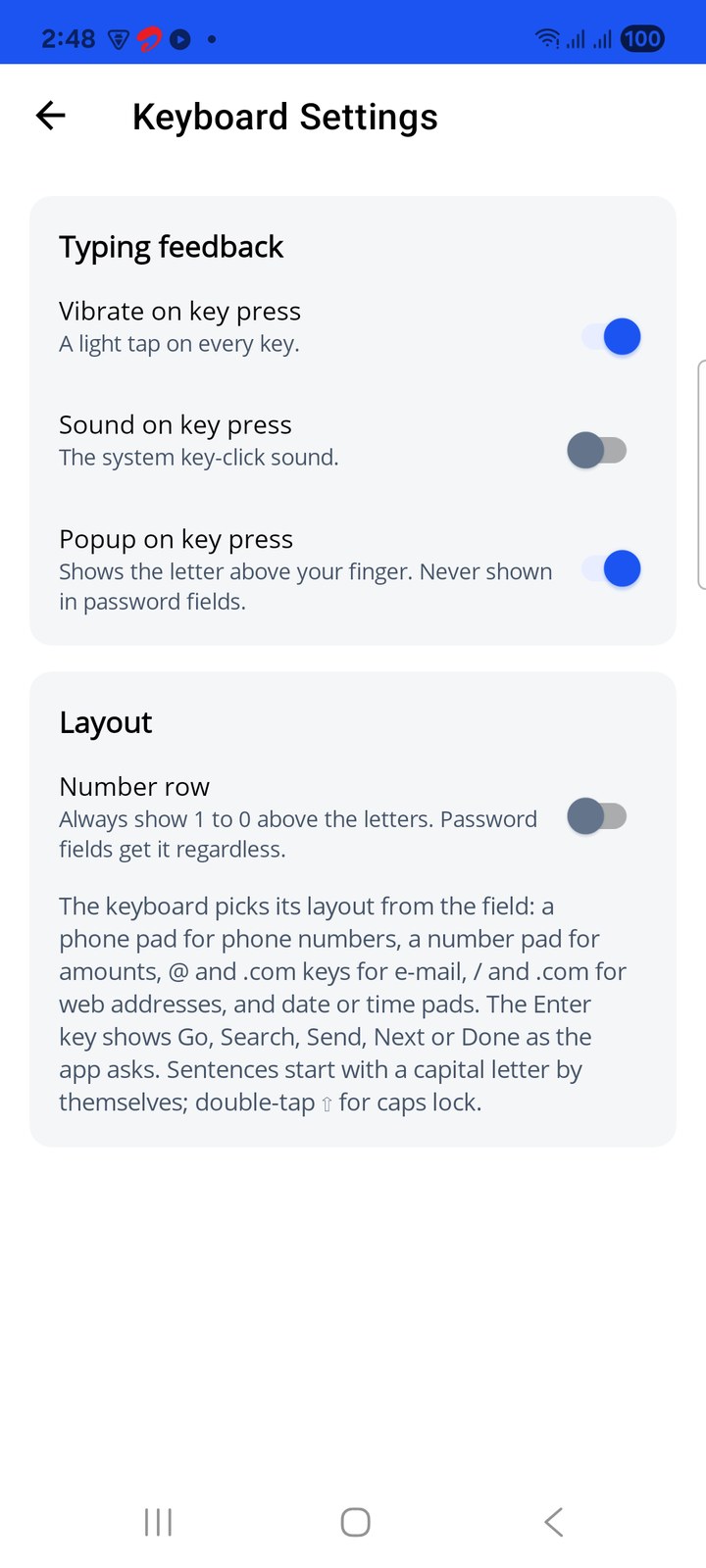
On the Home page, under the Quickey Keyboard card, tap Keyboard settings. Four switches:
- Vibrate on key press - a light tap on every key (on by default).
- Sound on key press - the phone's key-click sound (off by default).
- Popup on key press - the letter bubble above your finger (on by default; never in password fields).
- Number row - always show 1 to 0 above the letters. Password fields get it regardless.
Changes apply to the next field you tap; no restart needed.
Tips
- Switching keyboards: use the keyboard icon in the Android navigation bar. Quickey does not have to be your default keyboard.
- Enter and Tab: a ⏎ or ⇥ at the end of your suffix is pressed as a real key, so scans can submit a form or move to the next cell.
- Banking apps: the keyboard uses no accessibility service, so banking apps do not warn about it.
- Word suggestions use an English frequency list and are computed on the phone. Nothing you type leaves the device.