Guides › Connect to PC or TV
Connect: scan into your PC or Android TV
Updated 6 October 2026 · Quickey 1.10 (build 16)
Connect turns the phone into a wireless scanner for your computer. Pair once, switch on Send to device, and every scan is typed wherever the PC cursor is: Excel, WhatsApp Web, billing software, anything.
On this page
Choose a modeBluetooth (no PC app)Install Quickey ConnectWi-Fi pairingInternet pairingSend scansRemembered PCs and auto-connectDevices tab on the PCTroubleshootingChoose a mode
Open ☰ › Connect. Three ways to reach the PC, fastest and free first:
| Mode | Needs | Best for |
|---|---|---|
| Bluetooth | Nothing on the PC (phone acts as a keyboard) | Office PCs where you cannot install software |
| WiFi (same network) | Quickey Connect on the PC, same Wi-Fi | Shops and warehouses; also enables Sessions |
| Internet | Quickey Connect, any network | PC in the office, phone in the field; falls back to Wi-Fi automatically when both are on the same network |
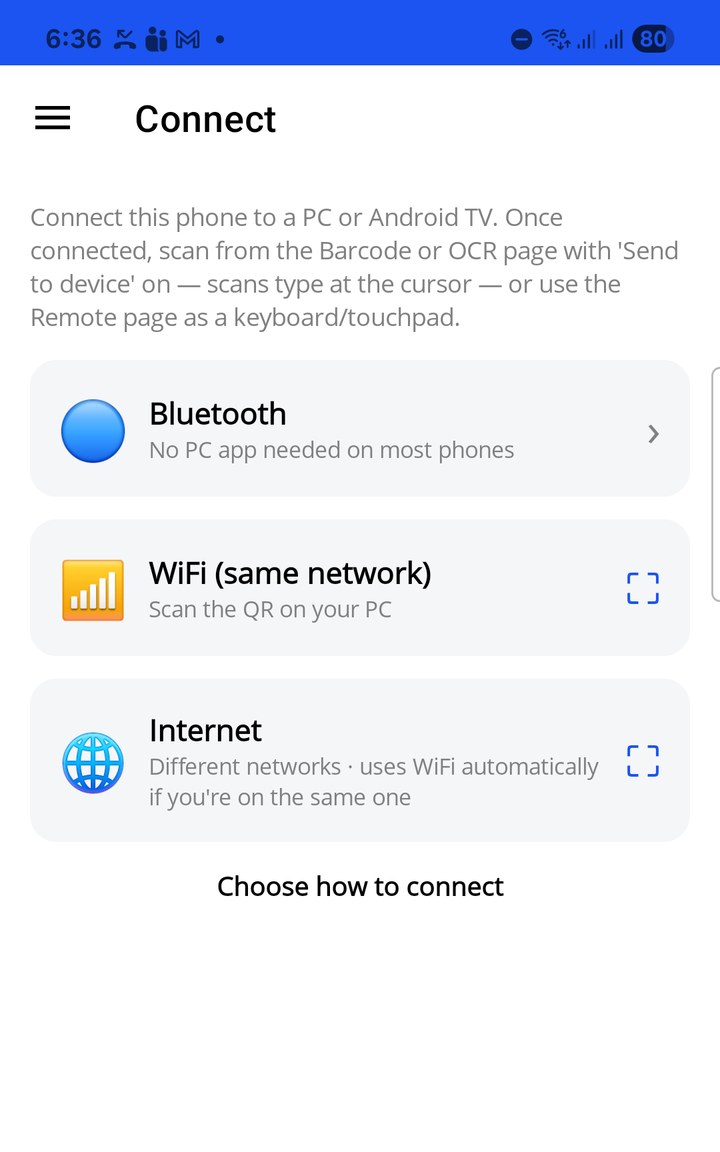
Bluetooth: no PC app needed
- Tap Bluetooth, then choose Keyboard — no PC app needed. (The other option, Normal — send to the Quickey Connect app, is not available yet.)
- If no PC is paired yet, the phone becomes discoverable for 2 minutes. On the PC open Settings › Bluetooth › Add device and pick the phone; it appears as a keyboard.
- Come back to Quickey and tap Bluetooth › Keyboard once more. If several PCs are paired, a Connect to which PC? list appears. The status line shows Connected · Bluetooth.
The phone is now a Bluetooth keyboard: scans are typed with your prefix and suffix, including a real Enter or Tab. A keyboard connects to one host at a time, so pick the right PC if several are paired.
Install Quickey Connect on Windows
- On the PC, open the download page and save QuickeyConnect-Setup.exe (Windows 10 or 11, 64-bit, about 70 MB).
- Run it. Because it is a new app from a small publisher, Windows shows a one-time "Windows protected your PC" prompt: click More info › Run anyway. No administrator rights are needed.
- Quickey Connect opens with a pairing QR and a code. If Windows Firewall asks, allow it on private networks.
The app keeps itself up to date: when a new version is out it downloads in the background and offers Restart to update. Phone and PC versions must match; if one is too old, pairing tells you which side to update.
Quickey Connect runs as a single instance: opening it again while it is running just brings the existing window to the front. With Minimize to tray ticked (the default), minimizing or closing the window hides it to the notification area while scans and clipboard sync keep working; double-click the tray icon to open it, or choose Exit from its menu.
Wi-Fi pairing (same network)
- Make sure the phone and PC are on the same Wi-Fi.
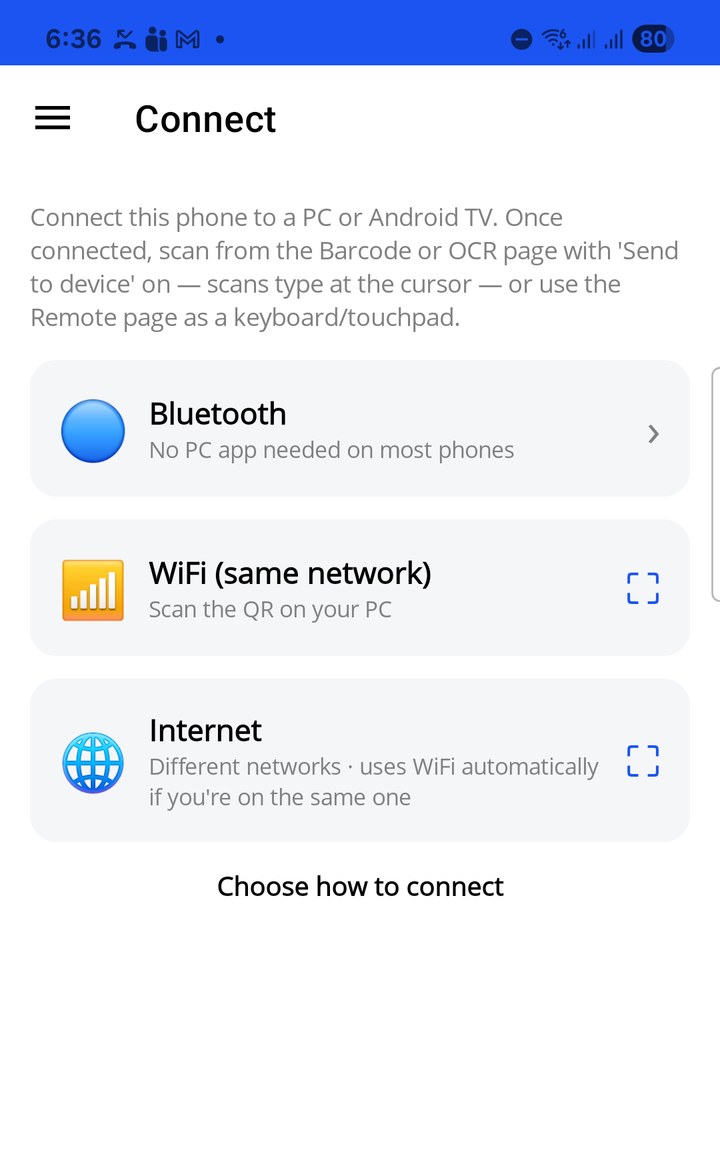
- In Quickey tap WiFi (same network). The camera opens.
- Scan the QR in the Quickey Connect window. It connects instantly; the PC log shows ✓ Paired. No approval step is needed.
The first time Quickey Connect runs, Windows Firewall may ask about it. Allow it on private networks; otherwise Wi-Fi mode cannot receive scans (internet mode still works).
The QR pairs Wi-Fi and internet at the same time, so you do not need to pair again when you switch modes. If the camera is not handy, type the code shown under the QR instead.
Internet pairing (different networks)
Tap Internet and scan the same QR from Quickey Connect. Scans travel through the Quickey relay when the two devices are on different networks, and automatically use direct Wi-Fi when they are on the same one. Nothing else to configure.
Send scans to the PC
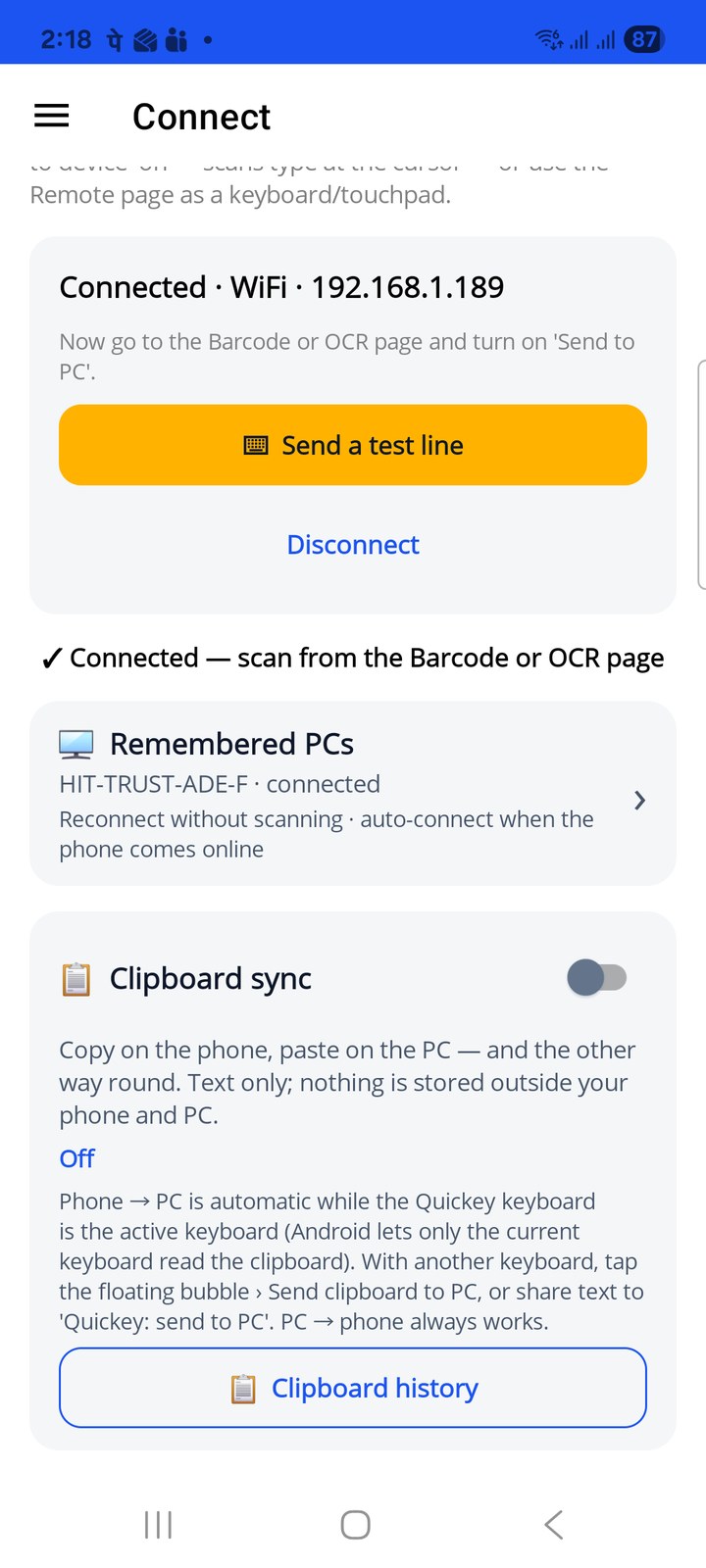
- Tap ⌨ Send a test line on the Connect page. QUICKEY TEST 123 and an Enter appear at the PC cursor. Click into the app you want to type into first (Excel, a browser, your billing software).
- Go to Barcode or OCR and switch on Send to device.
- Scan. The code is typed at the PC cursor with your prefix and suffix; an Enter suffix moves to the next row.
Switch Send to device off to type on the phone again. Disconnect on the Connect page forgets the PC. The same page holds the Clipboard sync switch.
With the Bluetooth keyboard link, the Remote page also turns the phone into a keyboard, touchpad and air mouse for the PC or an Android TV.
Remembered PCs and auto-connect
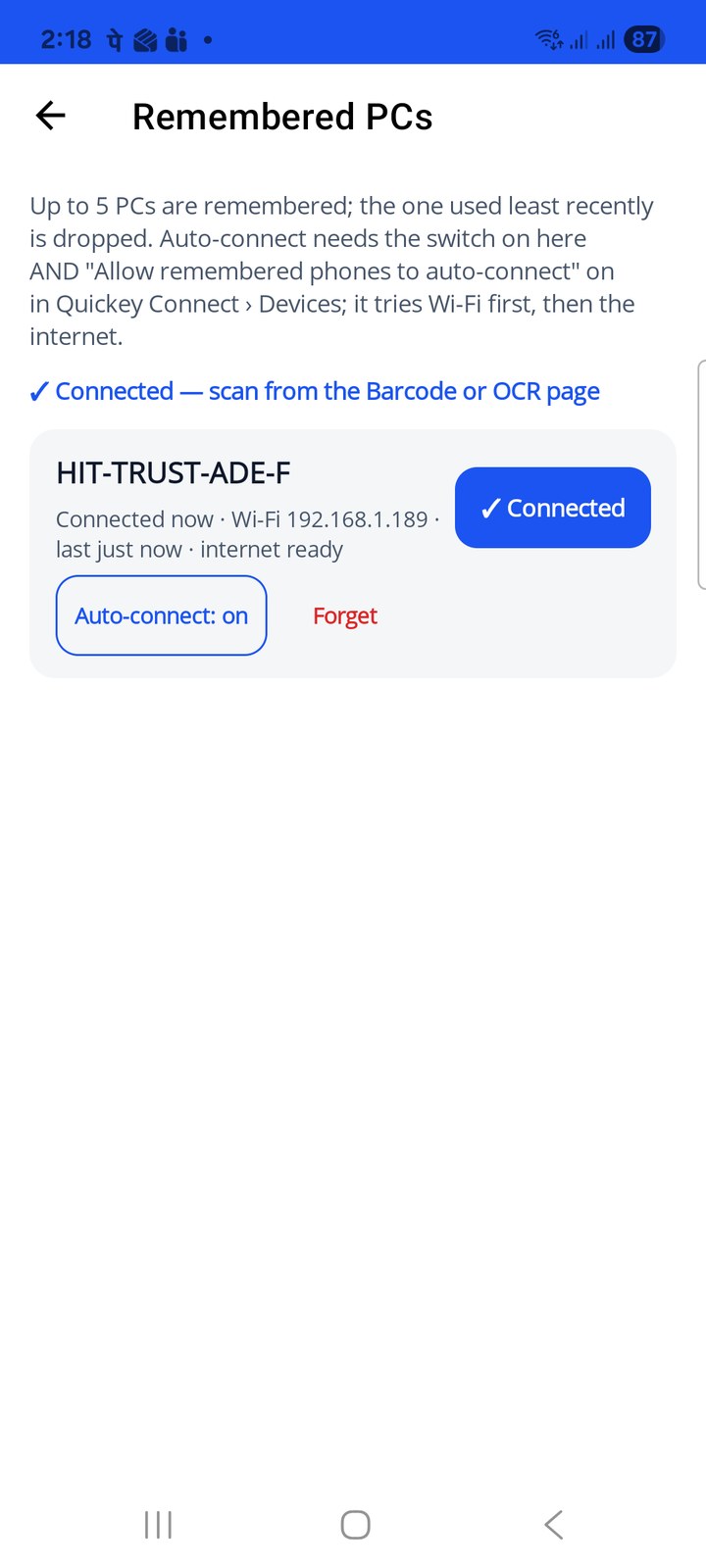
Every PC you pair with is remembered, so you never scan the same QR twice. Tap Remembered PCs on the Connect page to see the list. The full guide is on Remembered PCs & auto-connect.
- Each PC shows its name, how it was last reached (Wi-Fi address or internet) and when. Connect reconnects right away: Wi-Fi first, then the internet if the pairing carried the relay secret.
- Auto-connect: on lets the phone reconnect by itself when the app starts, comes back to the front, or the network returns. It only works when the PC allows it too (next section); a refused attempt is shown in the status line.
- Forget removes the PC. Up to 5 PCs are kept; the one used least recently is dropped.
Devices tab on the PC
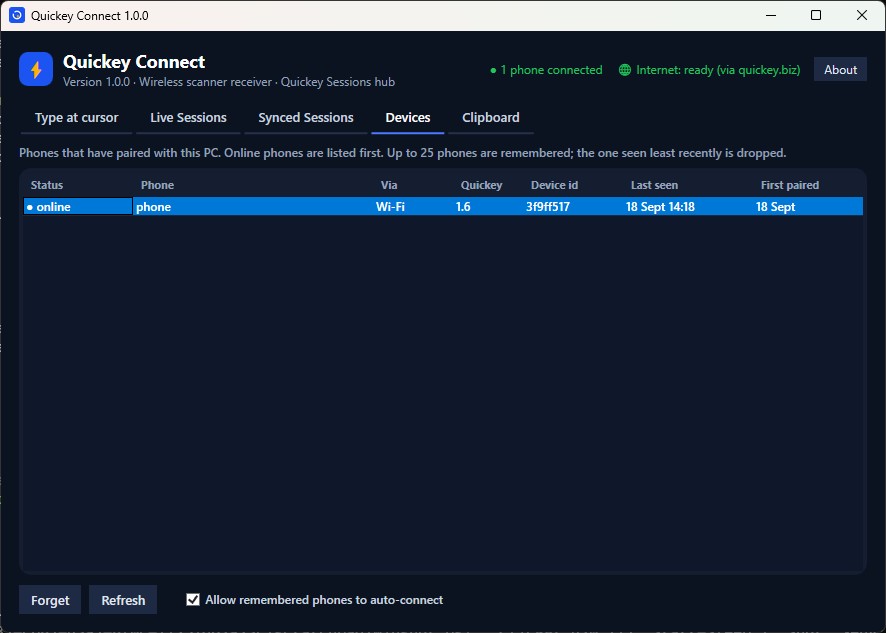
Quickey Connect lists every phone that has paired with it under Devices: online phones first, then the rest with their last-seen time, the link used (Wi-Fi or internet), the Quickey version and a short device id. Forget removes a phone from the list; up to 25 phones are kept.
The box Allow remembered phones to auto-connect is the PC side of auto-connect. With it off, a phone that tries to reconnect on its own is refused and told so; scanning the QR still pairs it. Auto-connect therefore works only when this box and the phone's own Auto-connect switch are both on. The header of the window shows how many phones are connected right now.
Troubleshooting
- Wi-Fi pairing fails: some office and guest networks block device-to-device traffic. Use Bluetooth, Internet mode, or a phone hotspot.
- Nothing is typed on the PC: the PC types into whichever window has focus. Click into the target app first. Apps that run as administrator need Quickey Connect restarted with Restart as admin (button in its window).
- Phone drops after the screen locks: Samsung and others freeze background apps. Quickey reconnects on its own when you return; keep the app open during long scanning runs.
- "Update Quickey Connect" or "Update Quickey" message: the versions no longer match. Update the side named in the message.